


In this guide, we feature CloudStream APK with instructions to install, set up, and use the platform on any streaming device.
CloudStream is an “open source” media application that can be used to stream high definition films, shows, live television, and more.
It works similarly to Kodi, Stremio, and other well-known APKs that require external providers in order to watch various content.
For CloudStream, users will download repositories and then various “extensions” that scrape the internet to serve up high definition links.
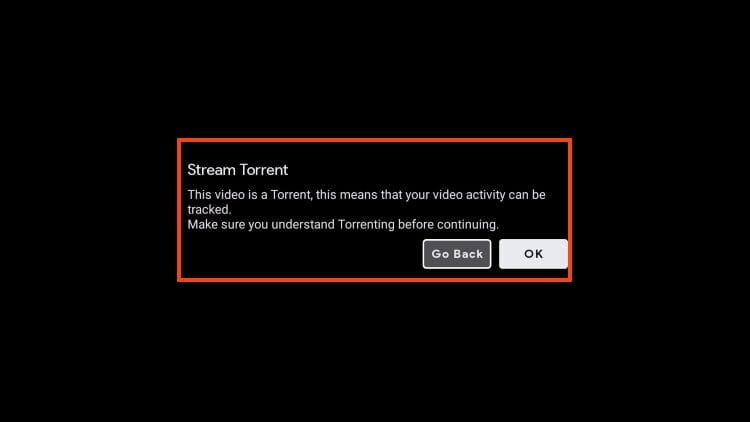
Oftentimes, the links from these extensions come in the form of torrent sources and therefore a VPN is absolutely necessary to ensure your personal IP Address isn’t broadcast to the public.
We walk you through the installation of both the official application as well as how to add repositories and extensions with our step by step guide.
In this tutorial, we are using an Onn 4K Pro to install and configure the CloudStream application.
However, this guide will also work perfectly on other media devices including Fire TV as well as Google TV/Android Boxes like the Google TV Streamer, NVIDIA SHIELD, and BuzzTV.
CloudStream also works great on mobile devices like Android phones/tablets for streaming on the go!
How to Install and Set Up CloudStream
Before adding repositories, we will first install the application from the TROYPOINT Toolbox.
Step 1 – Download CloudStream APK
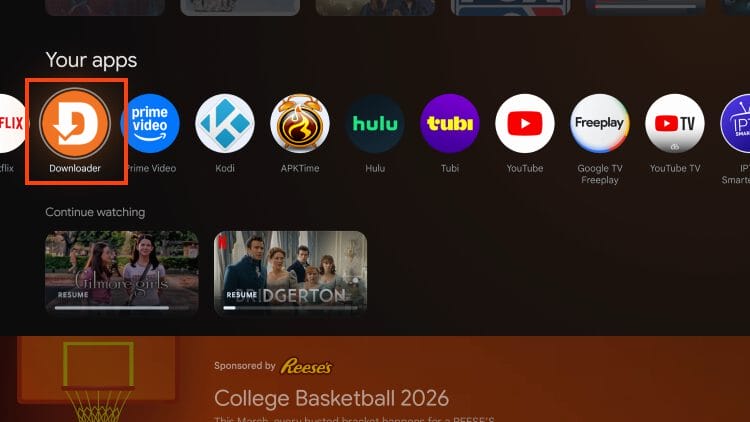
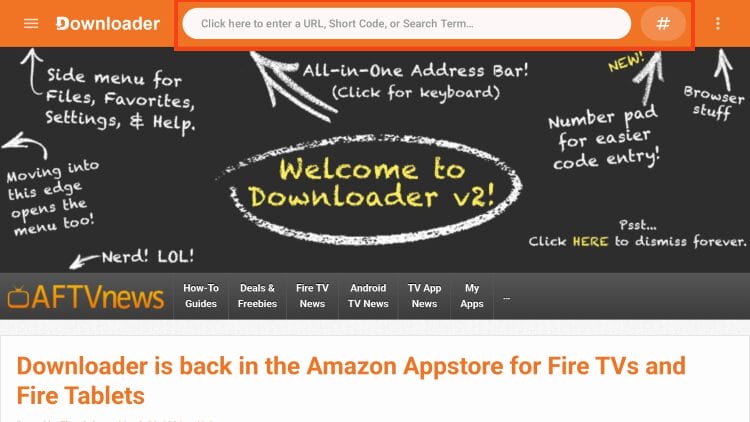
1. Install Downloader (via Amazon App or Google Play Store) and enable Unknown Sources for it via Settings. Launch the app.
2. Select the URL bar or Hashtag icon at the top of the screen.
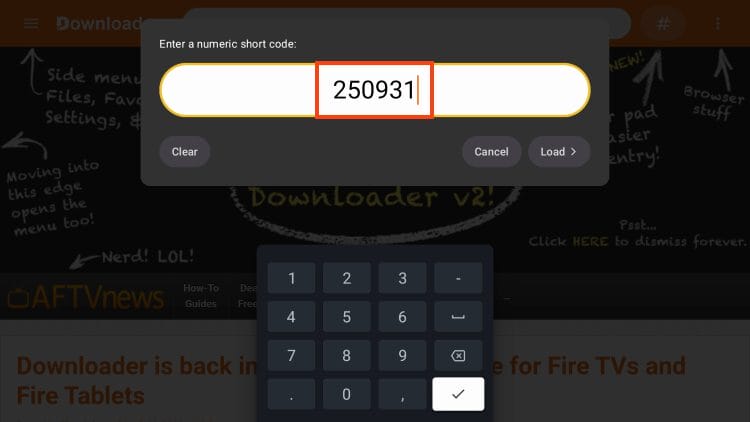
3. Input the Downloader Code for the TROYPOINT Toolbox (250931) and click Load.
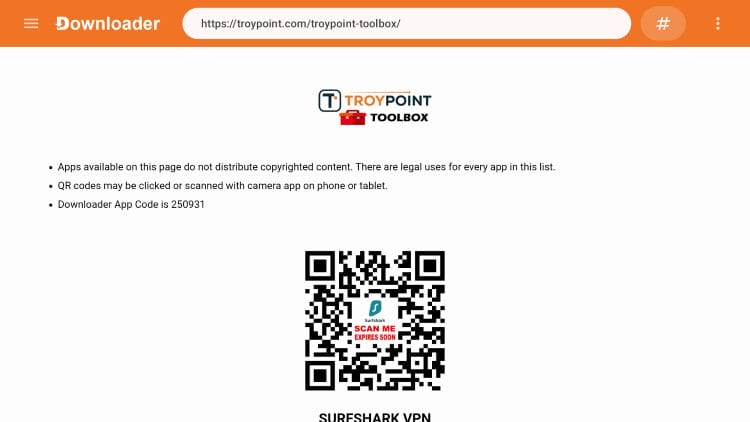
4. You are now in the TROYPOINT Toolbox which is a fabulous resource for Apps, APKs, and more.
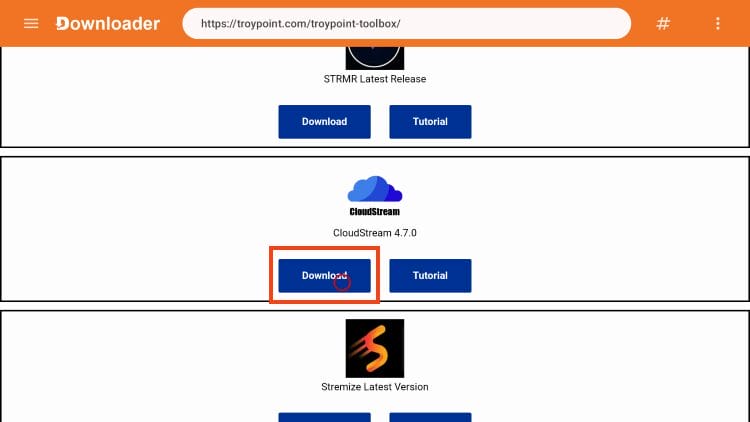
5. Scroll down to find the latest release of CloudStream and click Download.
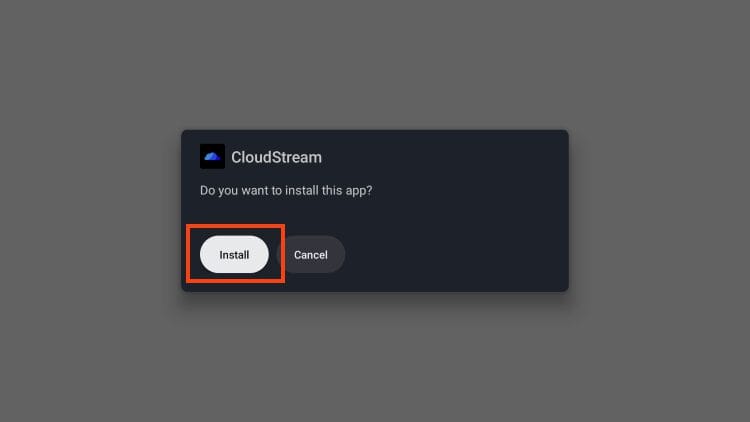
6. Select Install.
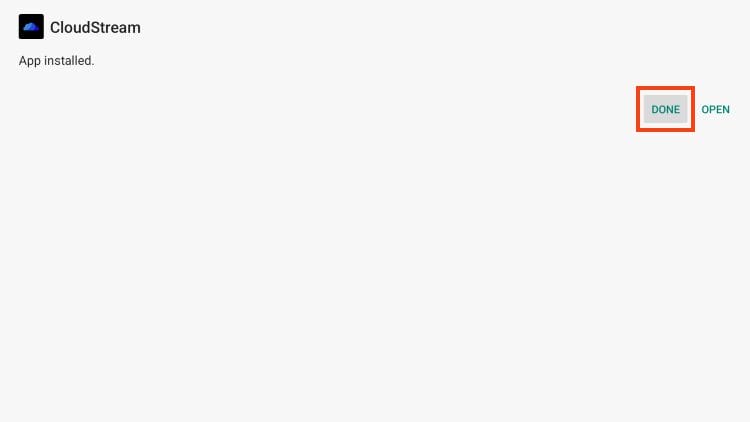
6. Click Done.
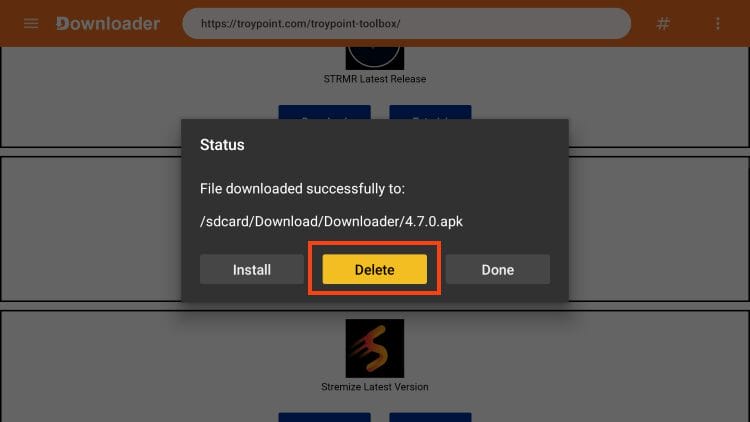
7. Choose Delete.
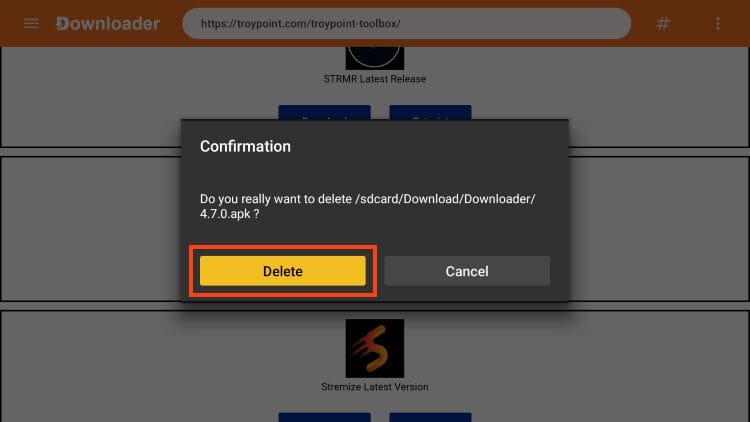
8. Click Delete again.
Now, we can continue with the setup process.
Step 2 – Set Up CloudStream for Use
There are a few settings we must configure before adding repositories within the CloudStream application.
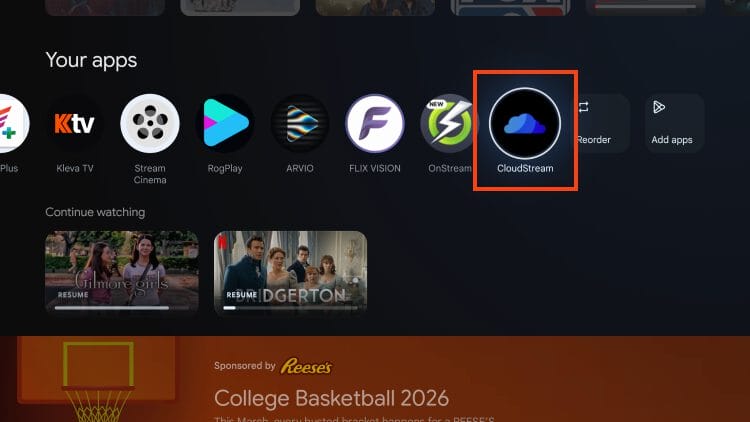
1. Launch CloudStream from Your Apps list.
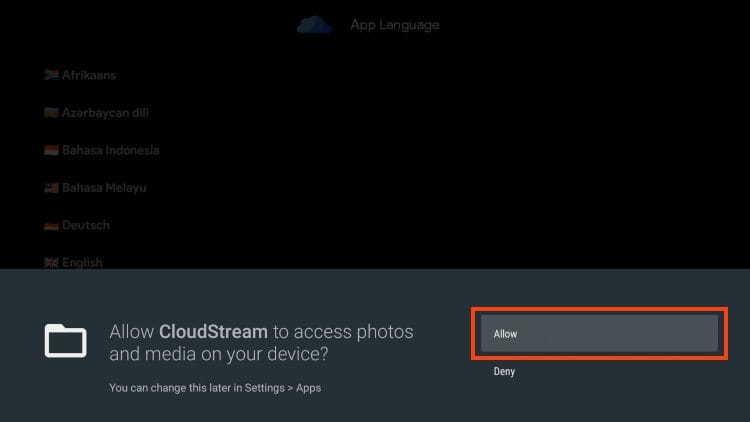
2. Select allow.
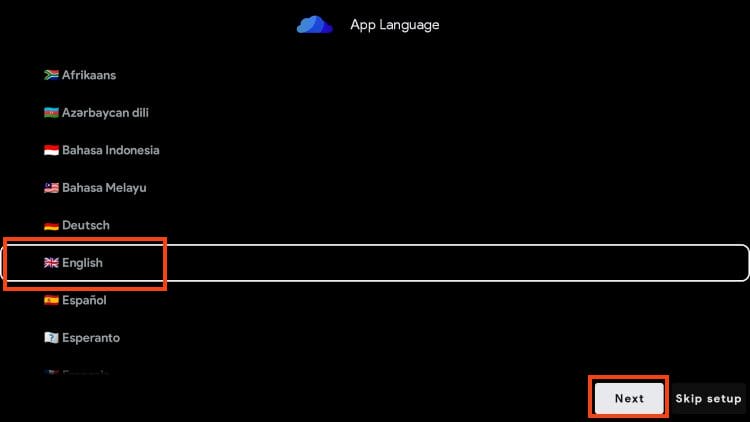
3. Choose your preferred language and click Next.
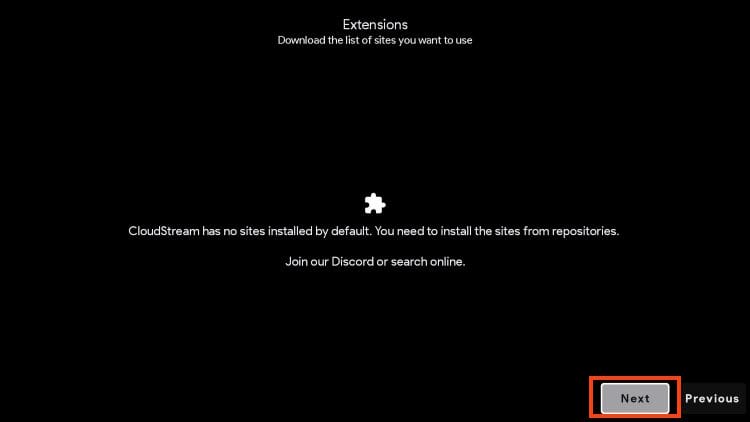
4. Read the message regarding Extensions and click Next again.
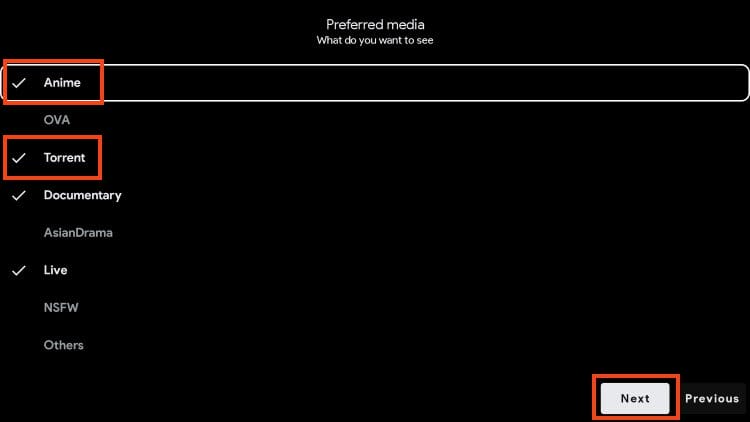
5. Choose your preferred media selections (Movies, Anime, Torrents, etc.) Click Next.
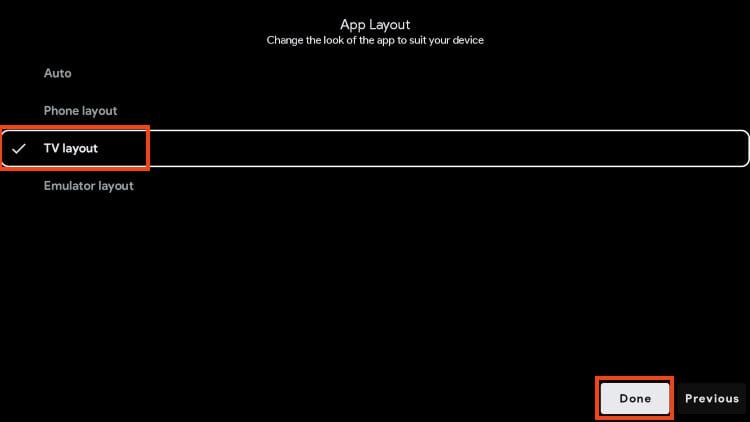
6. Choose TV Layout (unless you are using a mobile device) and click Done.
Once completed you are back at the home screen of the CloudStream APK.
Step 3 – Install Repositories & Extensions
We can now continue with the installation of Repositories and Extensions to view media via the CloudStream app.
Best CloudStream Repos (Extensions) List
1. From the main menu, choose Settings.
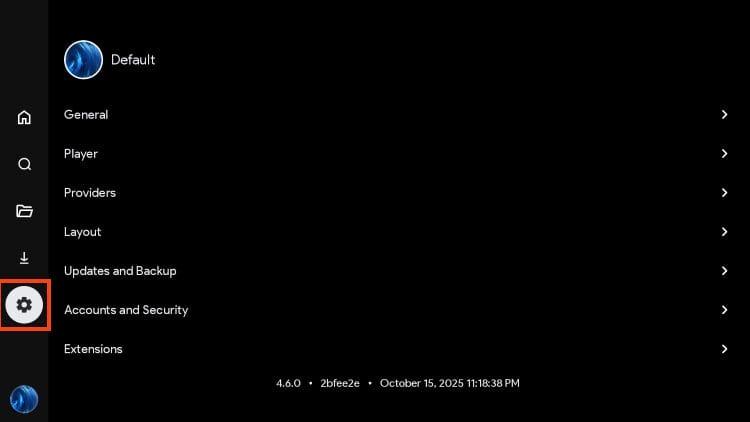
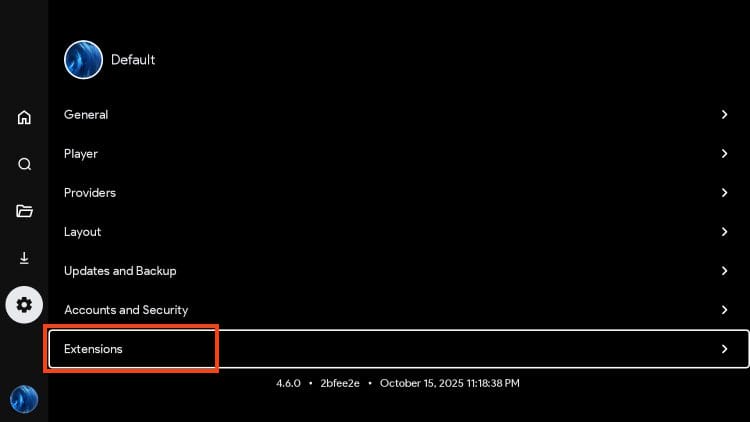
2. Scroll down and select Extensions.
3. Click Add repository.
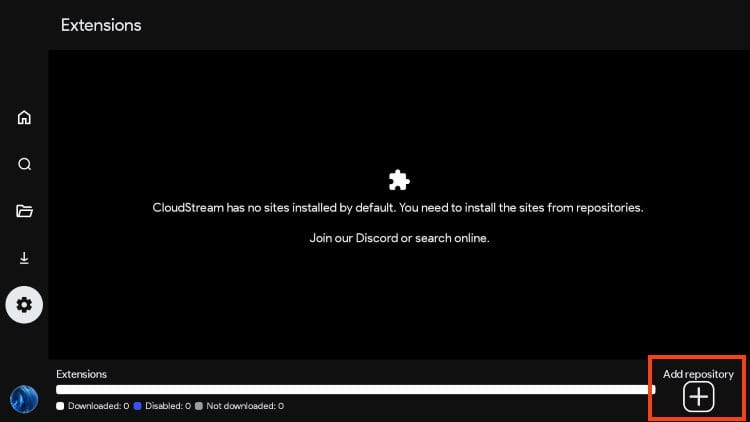
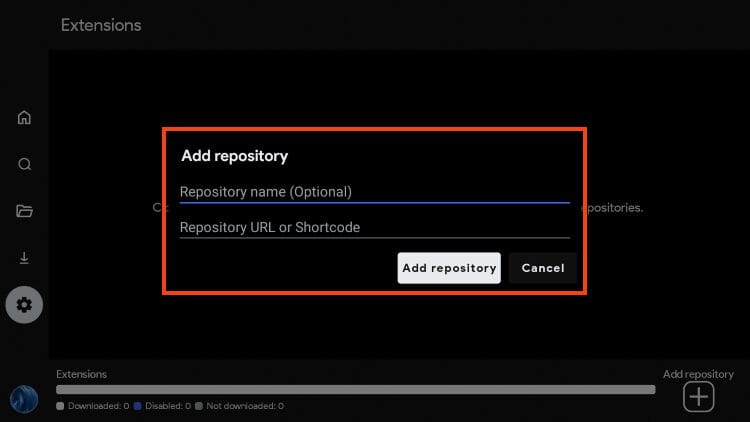
4. Input a name (optional) and a Repo URL/shortcode for your preferred repository and click Add repository.
If you are unsure of what to enter, use our list of Best CloudStream Repos/Extensions.
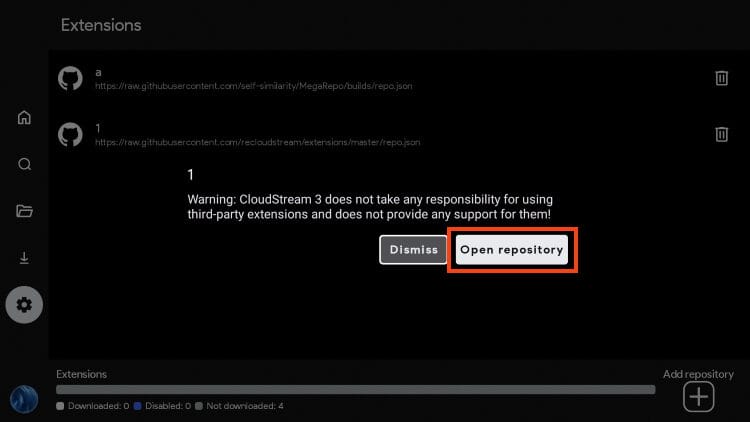
5. Choose Open repository.
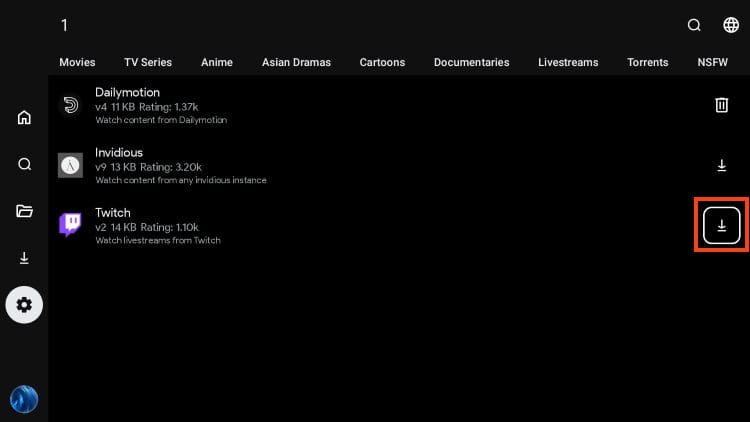
6. Click the download button next to your preferred Extension to install.
7. You will see the “plugin loaded” message once it has been installed.
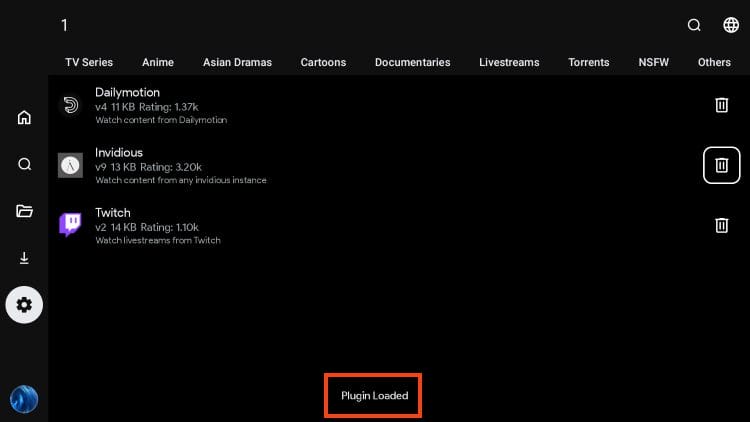
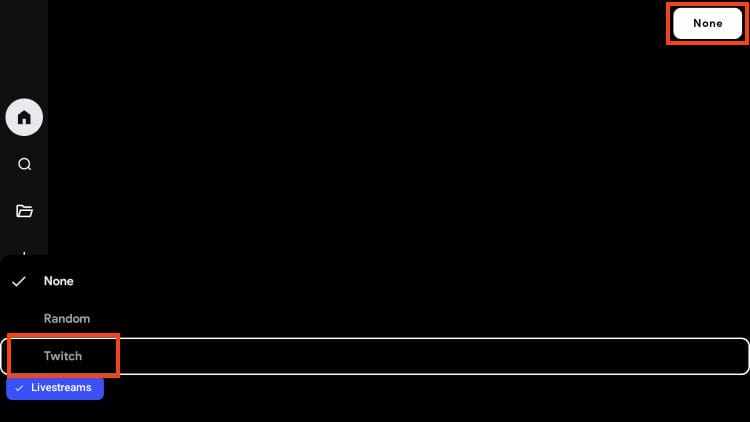
8. Go back to the home screen and click “None” in the upper right hand corner. Then choose your installed Extension.
9. You can now browse content from your selected extension.
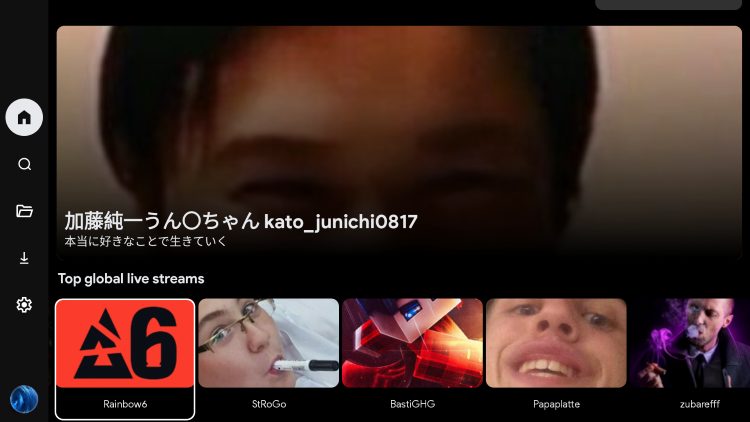
Congratulations! You have successfully installed and configured CloudStream to enjoy your favorite videos and more.
Continue reading for more details/information that will improve your overall experience with this application.
CloudStream APK Features & Description
CloudStream is an easy-to-use application with smooth navigation and a fabulous repository system that lets you install the extensions you want to stream high definition content.
The most difficult aspect of this APK is finding various repositories that host these extensions but a google search will help you immensely as there are numerous available.
Once you have added your preferred extensions, you can then toggle between them (within Settings) to find the media you enjoy – Movies, Live Television, Series, Anime, Torrents, and more.
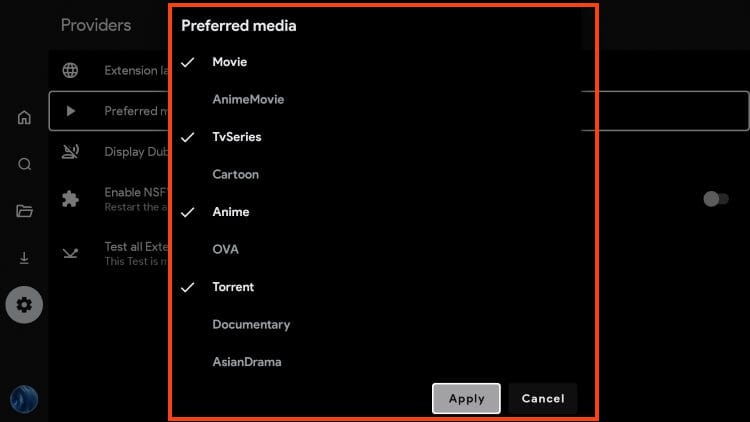
Some extensions may be compatible with various debrid providers (Premiumize, TorBox, Real-Debrid) so if you use one of these services make sure to integrate for higher quality links!
Users can enable Subtitles within the app if you are looking for closed captioning and even adjust the video player to your preference.
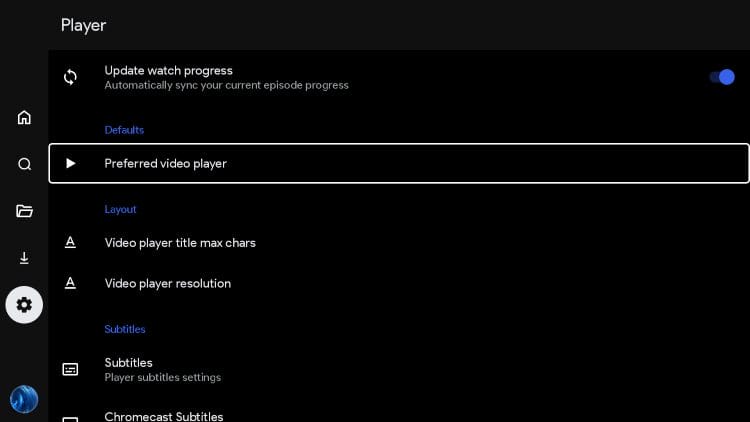
If you are interested in adding Adult content, you can also do so by enabling the toggle within settings for XXX.
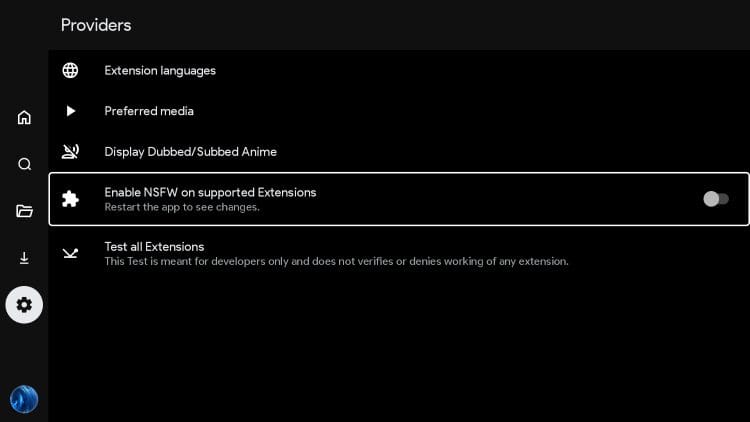
Browsing through the settings is a great way to fine tune this app to fit your needs! You can also check for the latest update or use the pre-release if you prefer.

Give CloudStream APK a try today on your preferred streaming device!
Is CloudStream APK Safe to Use?
We checked the official APK file for CloudStream with VirusTotal and took a screenshot of the results.
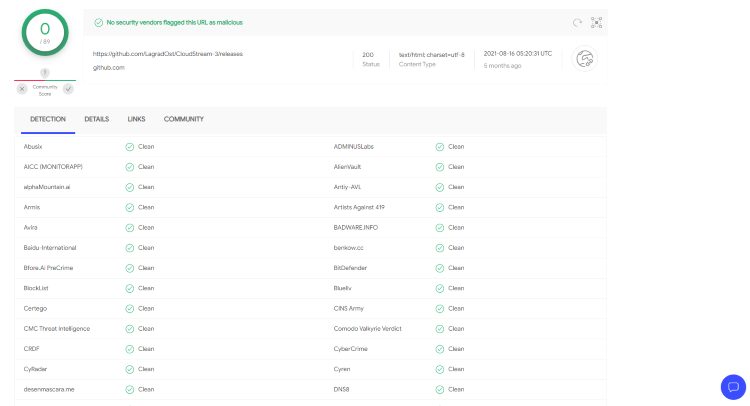
As you can see, VirusTotal didn’t find any suspicious files within the CloudStream APK file.
But that doesn’t mean we should take full precautions when using this “unverified” app as as many sources come from torrents which can expose your personal information!
Make sure to use a trusted VPN Provider in conjunction with CloudStream to enjoy safe, private streaming.
Final Notes & Thoughts
We are excited to see that CloudStream has continued to be developed and is now an open source platform that gives the end user more control.
While the repo/extension process may be a bit troublesome, after you install a few different options it is easy to see why it has become one of the most popular applications among Reddit users and more.
Hopefully we will continue to see it update and improve over time as more and more people use it for streaming Video on Demand, Live TV, etc.
If you have it installed, we want to know what you think of CloudStream. Drop a comment in the comment section below!
The post How to Install & Use CloudStream (Google TV/Android/Fire TV) appeared first on TROYPOINT: Tech Tutorials On Firestick, Kodi, Android TV Box, VPN, IPTV, Streaming, & More.