

The following tutorial will show you how to install Stremio on Firestick, Fire TV, Android TV/Google TV, and any device.

We include a video guide as well as screenshot instructions that will show you the fastest, most efficient way to install this application on your preferred device.
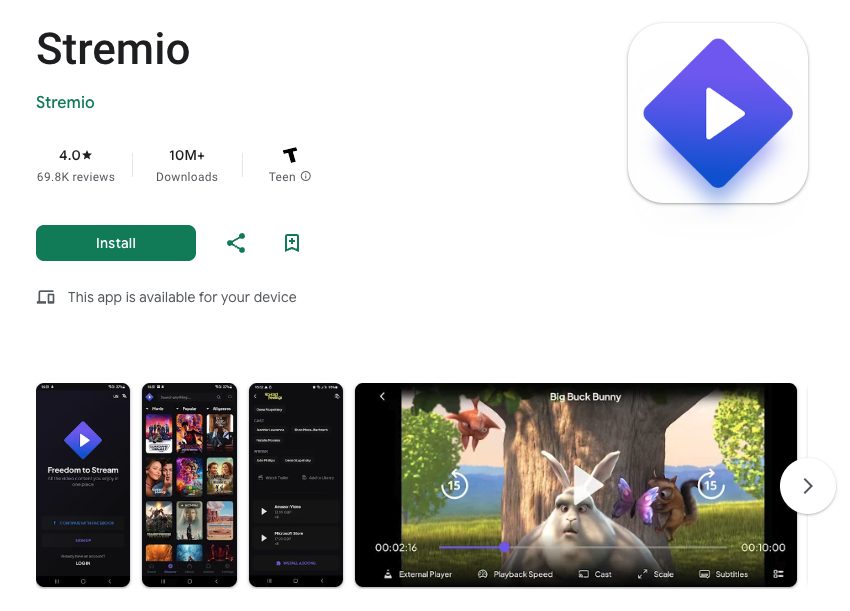
2026 Update: Stremio’s app store availability has changed as it has been removed from both the Apple App Store and the Amazon Appstore and is once again available on Google Play. See our full breakdown of this update for more details.
The best way to follow along is by viewing the video that covers important details about Stremio and how you can use this free platform to watch your favorite content.
Stremio Setup Video
Stremio doesn’t do much without the free add-ons that provide movies, TV shows, live channels, and more. Get my free Ultimate Stremio Guide below that provides step-by-step instructions with the most popular add-on.
Get Free Ultimate Stremio Guide
What is Stremio?
Stremio is one of the most popular apps for viewing movies, TV shows, and other content. This is a free media center application that works very similarly to Kodi or Plex.
This app is continually updated with new features with the latest version being V1.9.12 (here’s how to update Stremio if you’re on an older build).
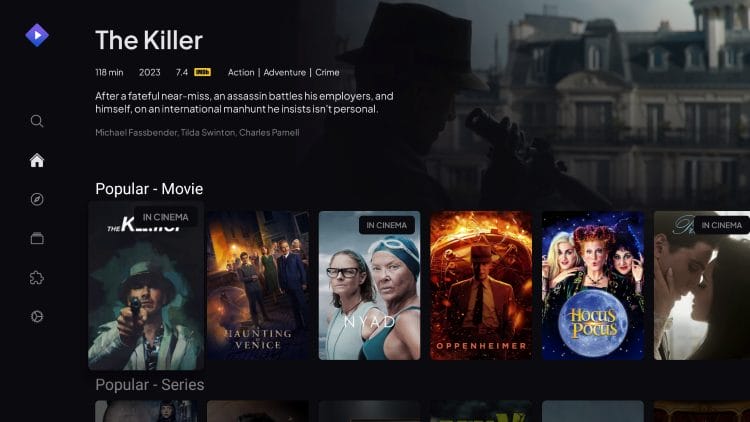
The Stremio application can be installed on Fire TV, Android TV/Google TV devices, Windows, Linux, Mac, phones, tablets, and more. You can also use a web browser if you prefer.
While Stremio is available inside the Google Play Store, we don’t recommend installing from here since they often provide outdated versions that don’t work as well.
After downloading, users can install 3rd party add-ons for streaming of on-demand movies, TV shows, Anime, live channels, and more. This is a vital step that you must take as the application will not function properly without these plugins.
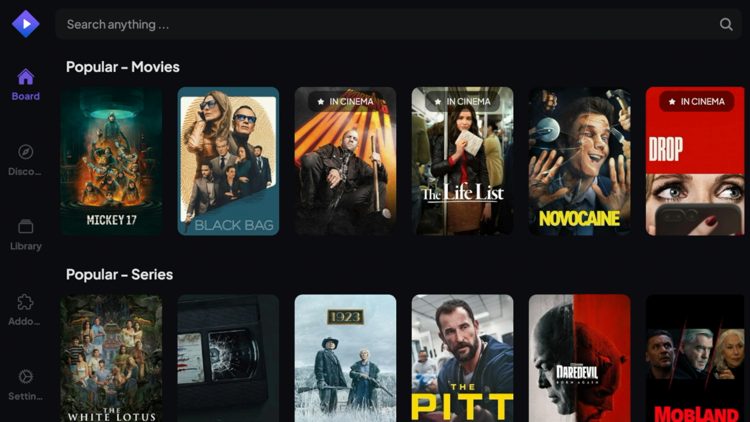
After adding your favorite add-ons, you can navigate the simple interface that Stremio offers and find the streams you are looking in just a couple of clicks.
TROYPOINT Tip: Stremio works best when paired with a premium debrid service like TorBox or Premiumize. We provide more details on this below the installation guide.
How to Register for Stremio
In order to use the Stremio app, we must first register for a free account on the official website. For anonymity purposes, we recommend using an anonymous email address such as StartMail that will ensure your identity is secure.
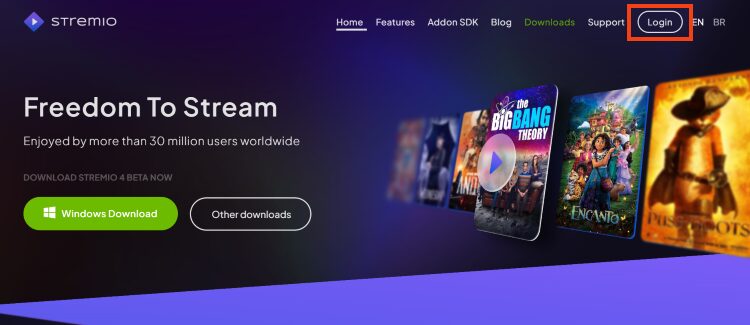
1. Visit the official Stremio Website and click Login in the upper right-hand corner.
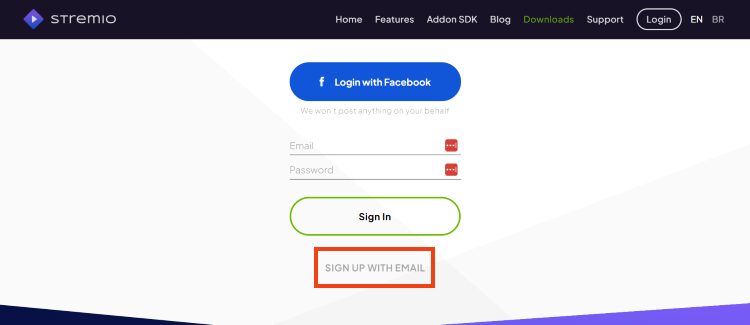
2. Select Sign up with Email.
3. Enter an email address and password and click Sign Up.
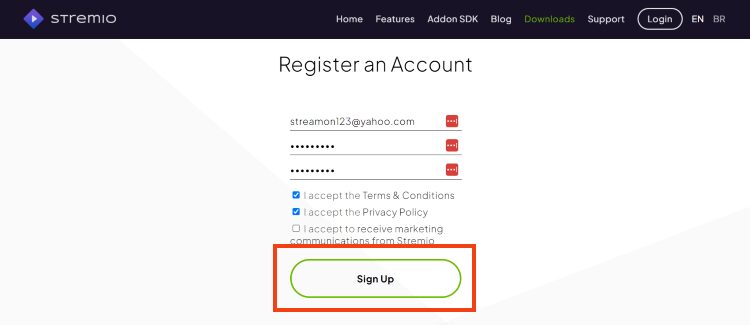
4. Your account is now created!
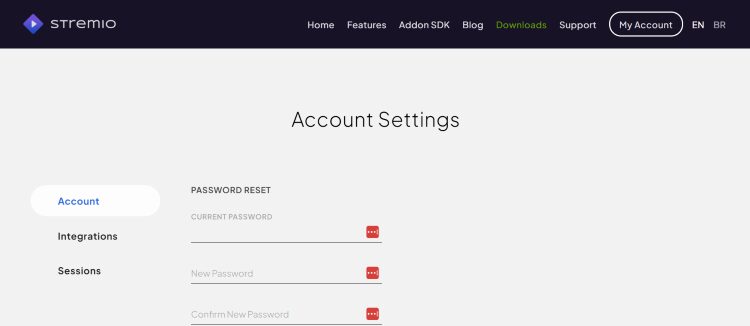
Continue reading to learn how to install the Stremio application and login with your account.
How to Install Stremio on Firestick & Android TV/Google TV
In this guide, we are using an Onn 4K Pro to install Stremio but these instructions will also work on any other type of Google TV/Android TV or Fire TV devices.
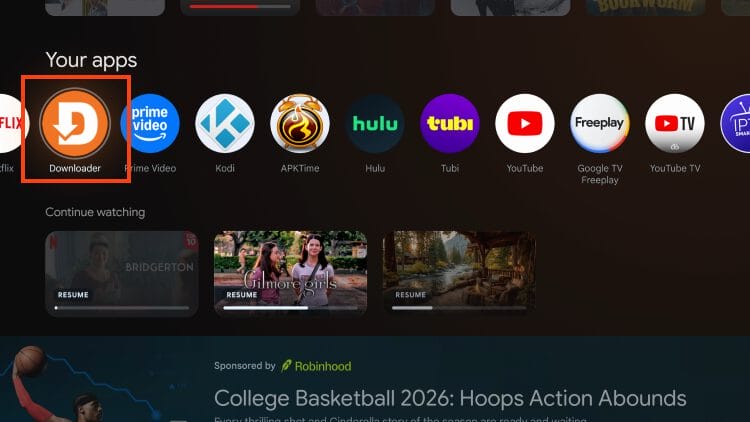
1. Install the Downloader Application and enable Unknown Sources for it within Settings. Launch the Downloader App.
2. Select the Hashtag Icon (upper right hand corner) which will open the numerical keypad.
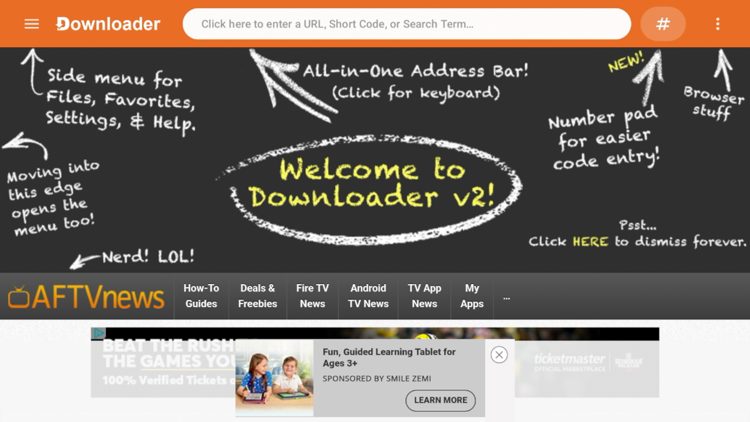
3. Enter the code 250931 and click Load.
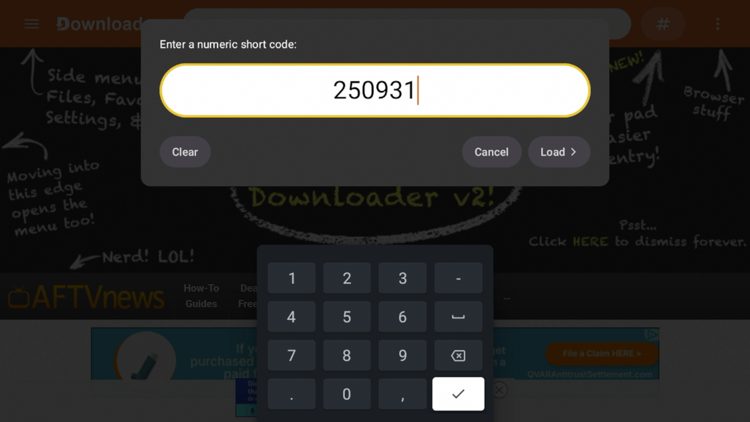
4. This will direct you to the TROYPOINT Toolbox.
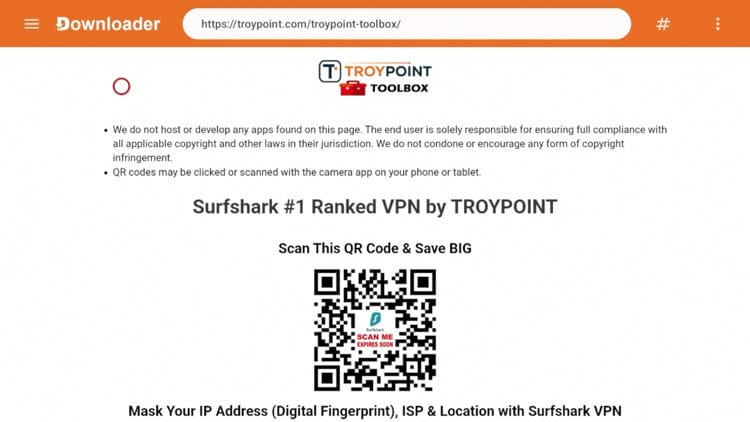
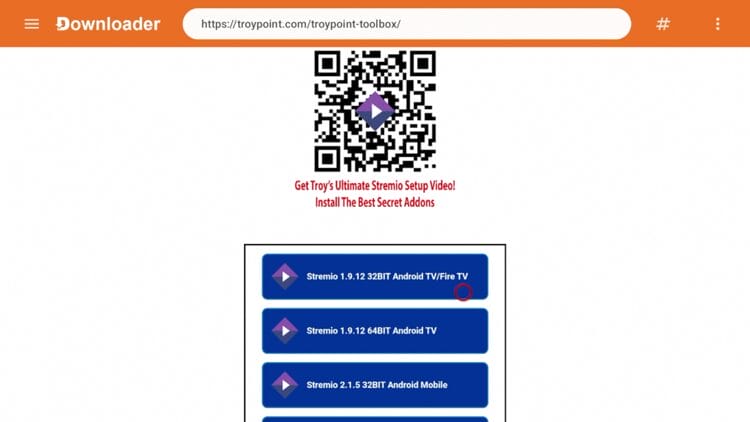
5. Scroll down and locate the Stremio app for Fire TV & Android TV boxes. Then click download to install the latest version.
Note: The 64bit version for Stremio should only be used on devices that accept 64bit apps such as the BuzzTV PowerStation and other powerful devices.
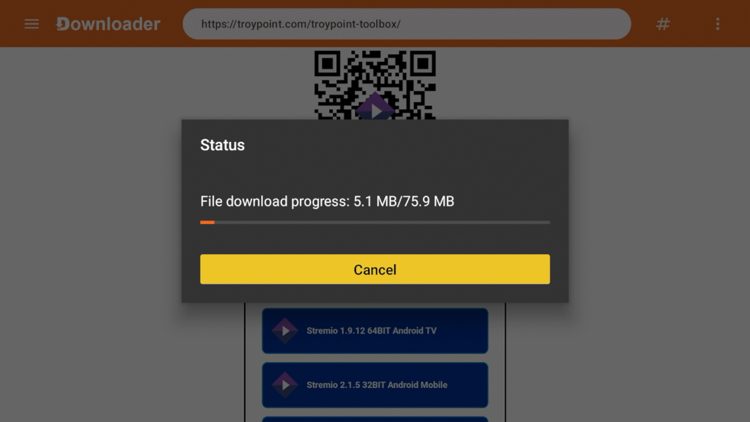
6. Wait a few seconds for the download to finish.
7. Click Install.
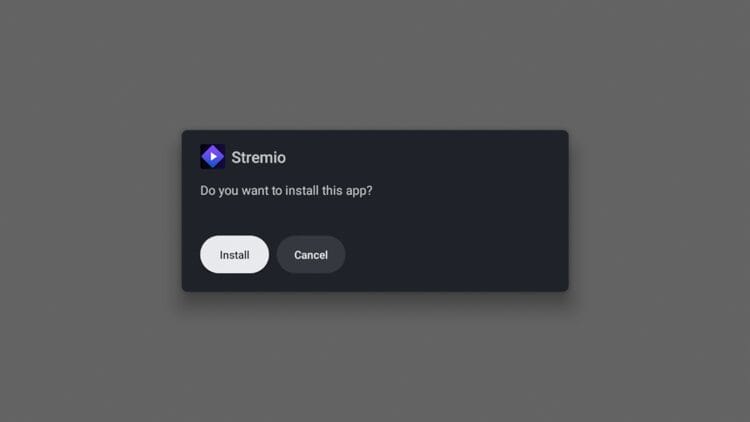
8. Click Done.
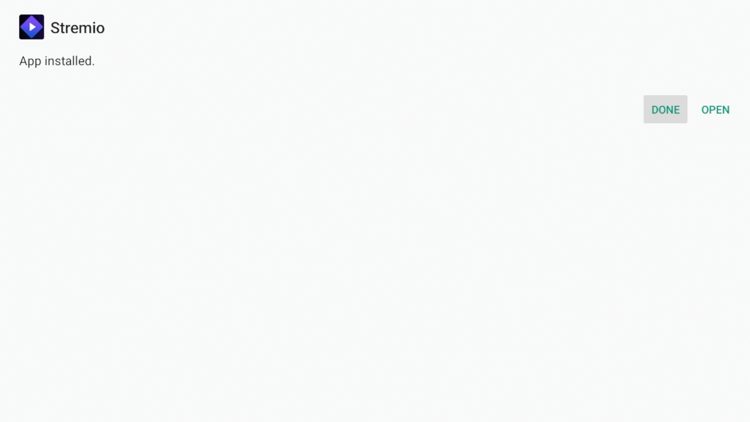
9. Click Delete to remove the installation file.
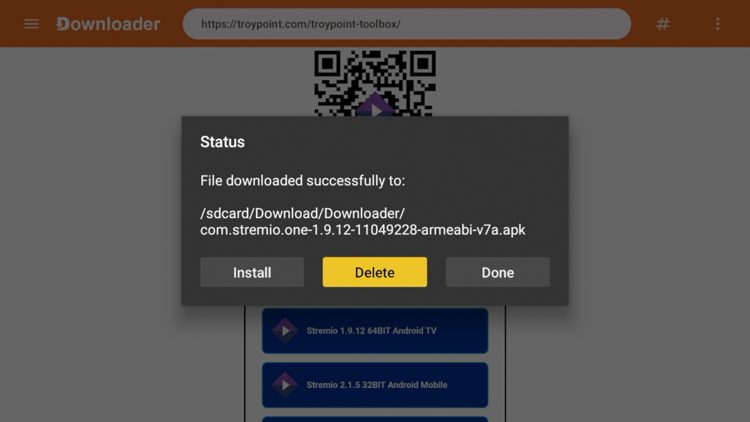
10. Click Delete again.
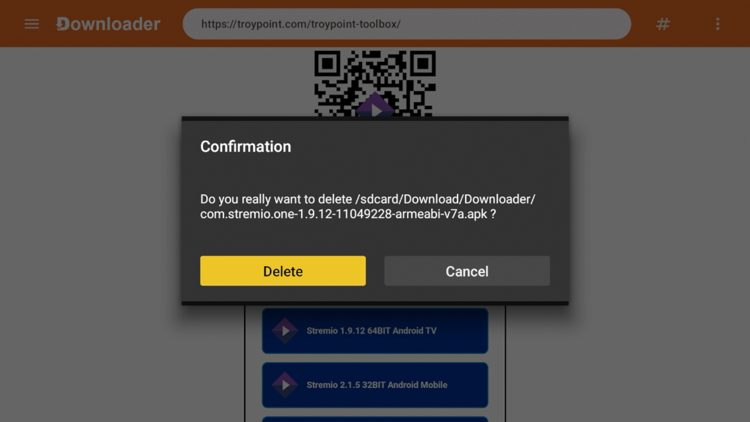
11. Then locate Stremio in your apps list and launch it.
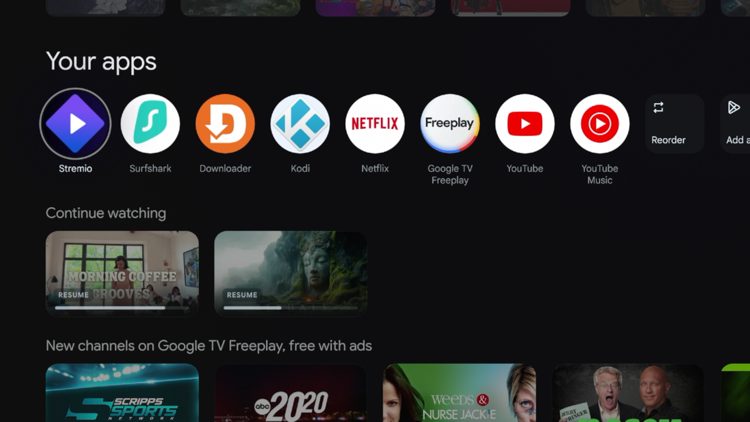
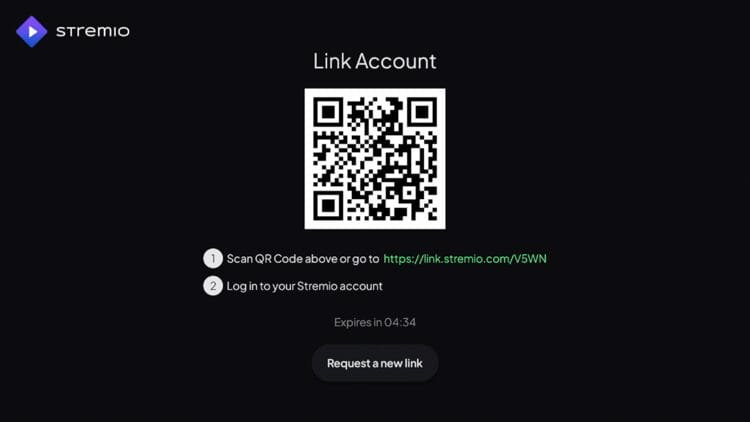
12. You must now link your Stremio account with the application. You can login with the QR code or open the designated link in a browser on your phone, tablet, or computer.
13. You have successfully installed Stremio on your device.
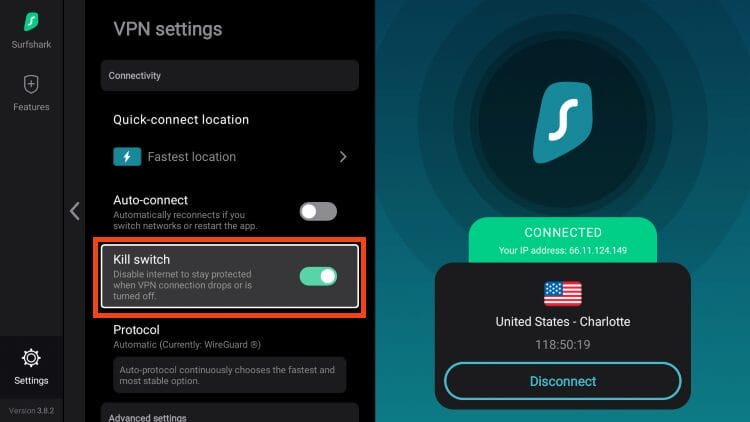
14. Before viewing content within Stremio, you should first connect to a VPN to mask your IP Address and encrypt your connection to the Internet.
There are several unverified add-ons in this platform, which means a quality VPN is critical to protect yourself. We also suggest enabling the Kill Switch for added protection.
How to Integrate Debrid Services
Although a premium debrid service is not required to use Stremio, you will have a much better streaming experience after pairing one of these services.
We provided steps below for integrating TorBox but you can follow the same process for Premiumize, AllDebrid, and other debrid providers.
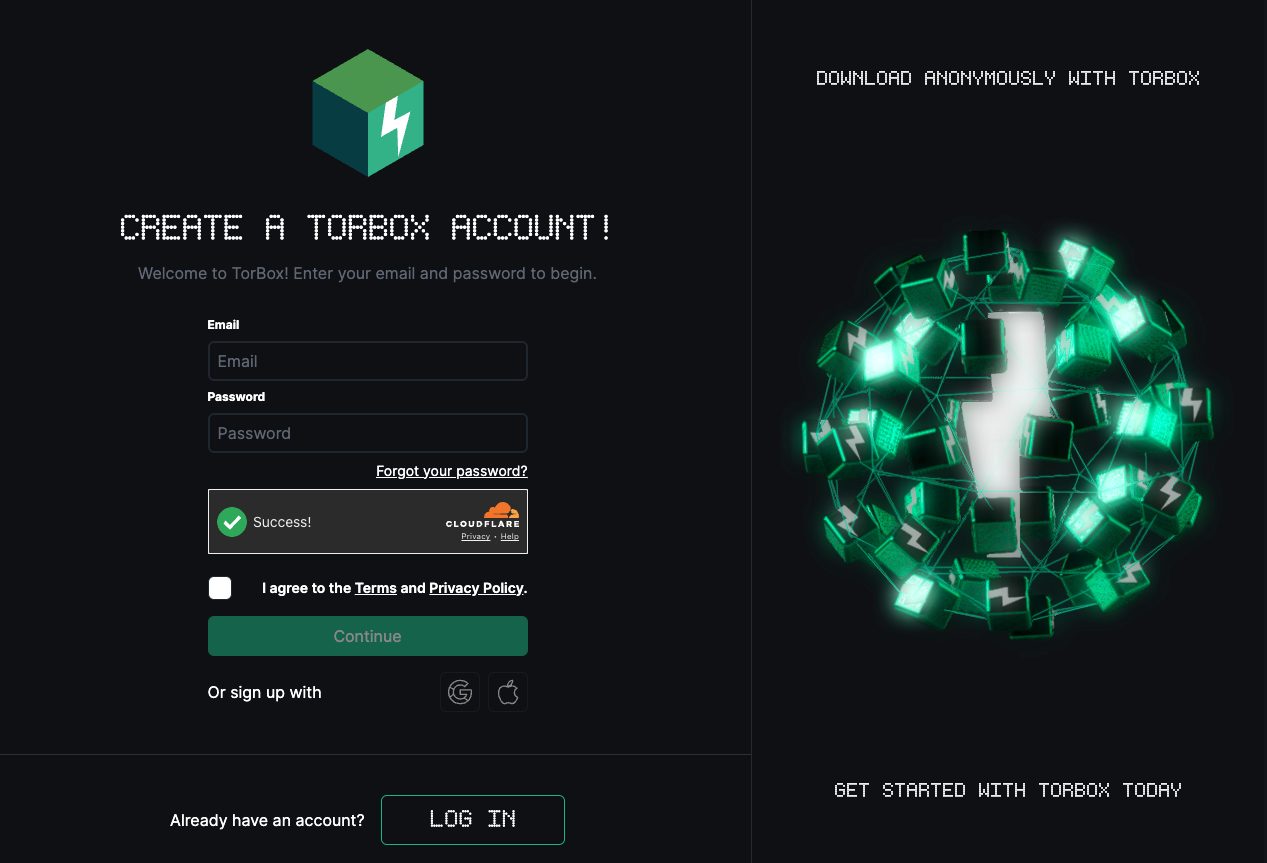
1. You must first visit the TorBox website and register for an account. This starts at only $3/month on the ‘Essential’ plan.
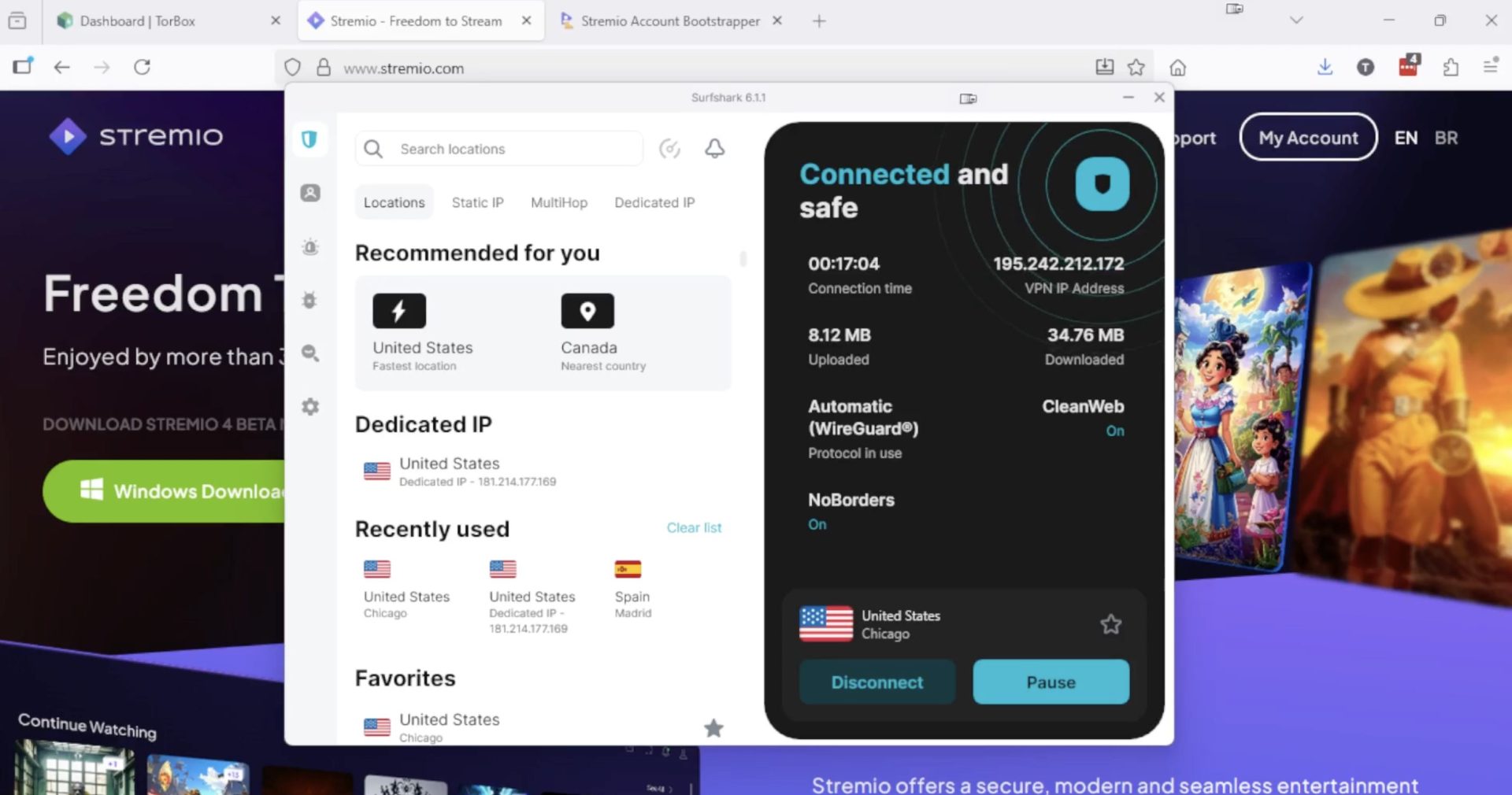
2. After you’ve signed up for a TorBox account, visit the Stremio Account Bootstrapper website and we suggest connecting to Surfshark VPN to protect yourself.
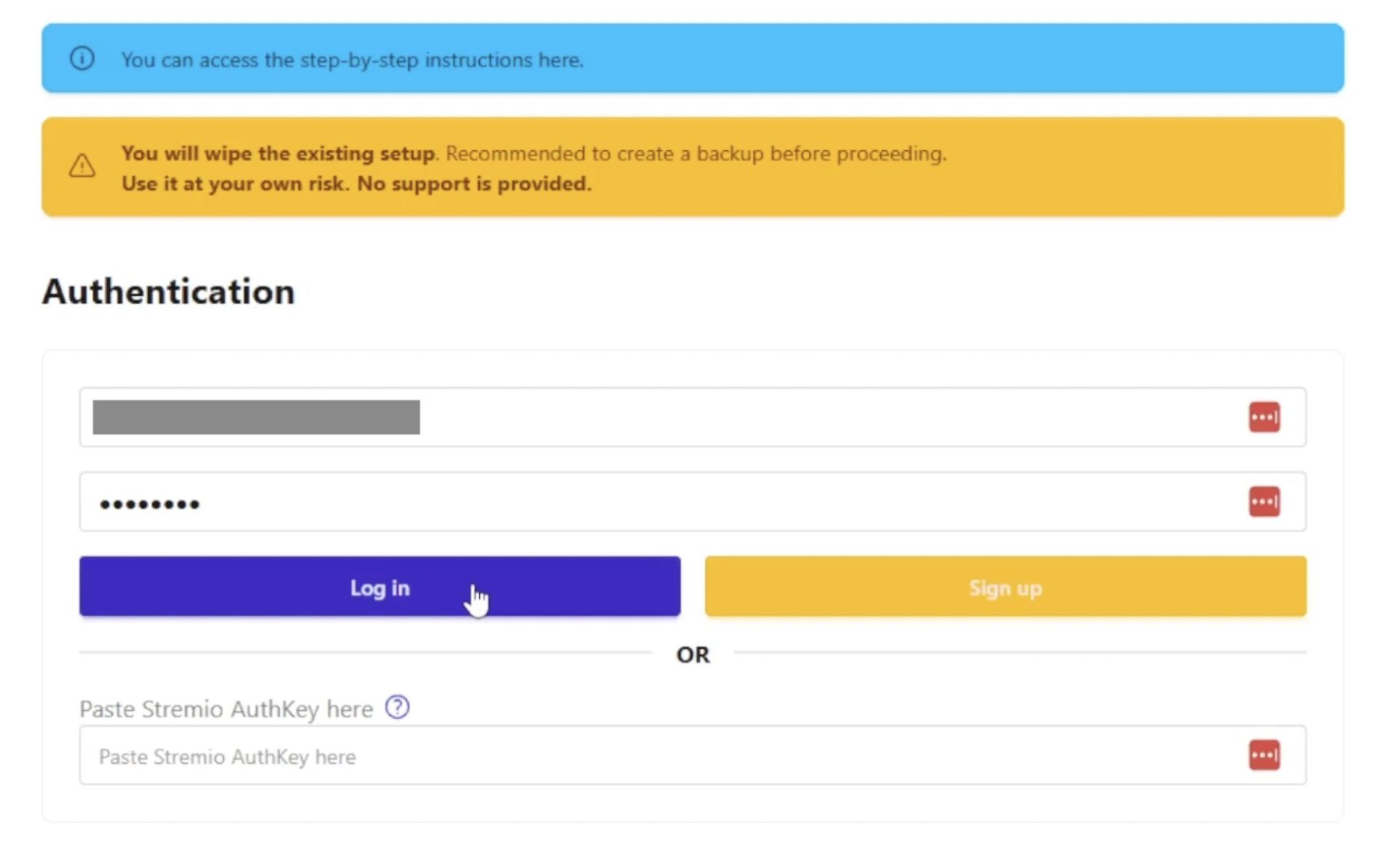
3. Once on the Stremio Account Bootstrapper website, scroll down and enter your Stremio email address and password. Then click Log in.
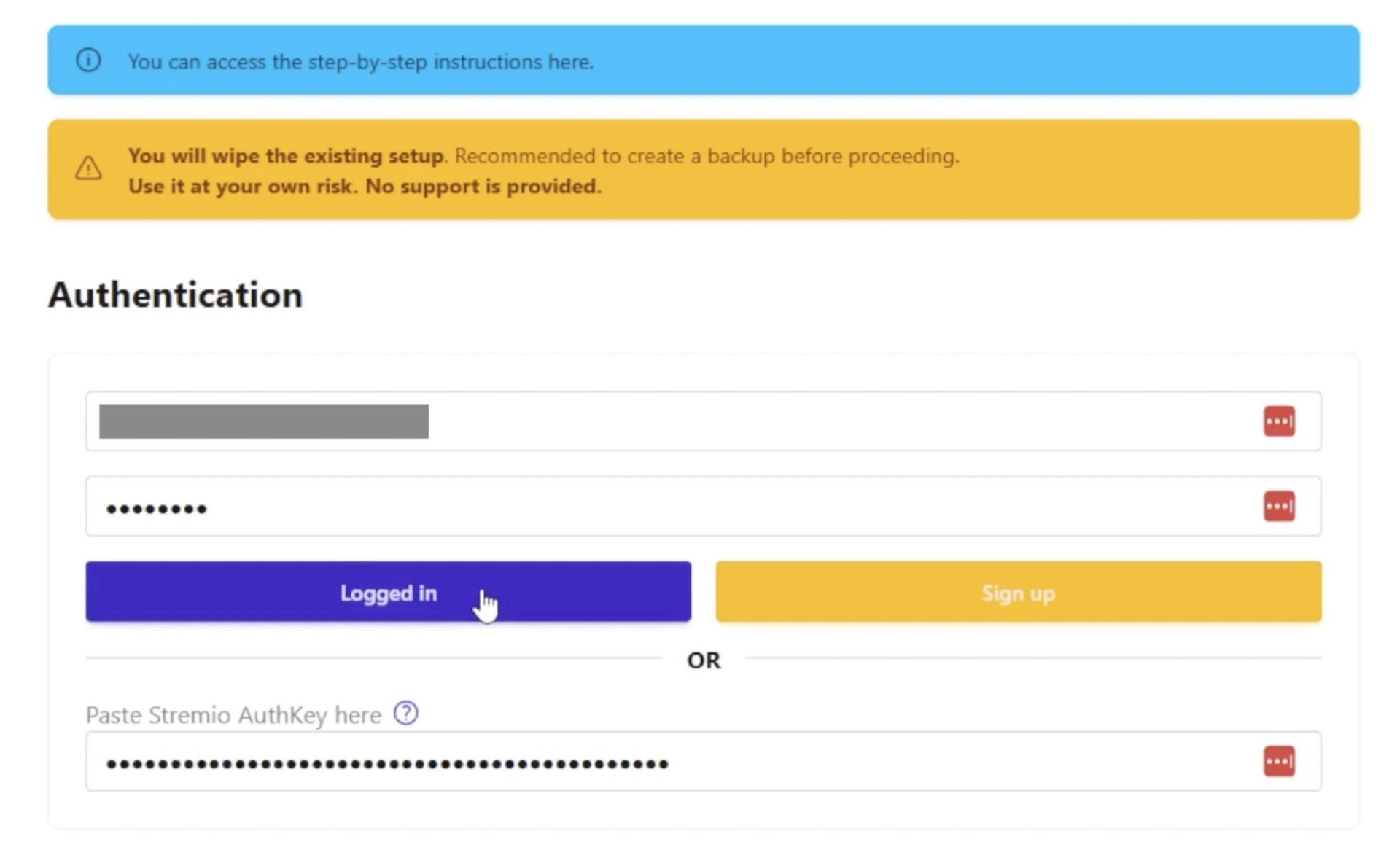
4. After you’re logged in it will automatically paste your Stremio AuthKey, which is why it’s important you’re logged into your Stremio account on the same device.
5. Choose TorBox under Step 3 and get your API key.
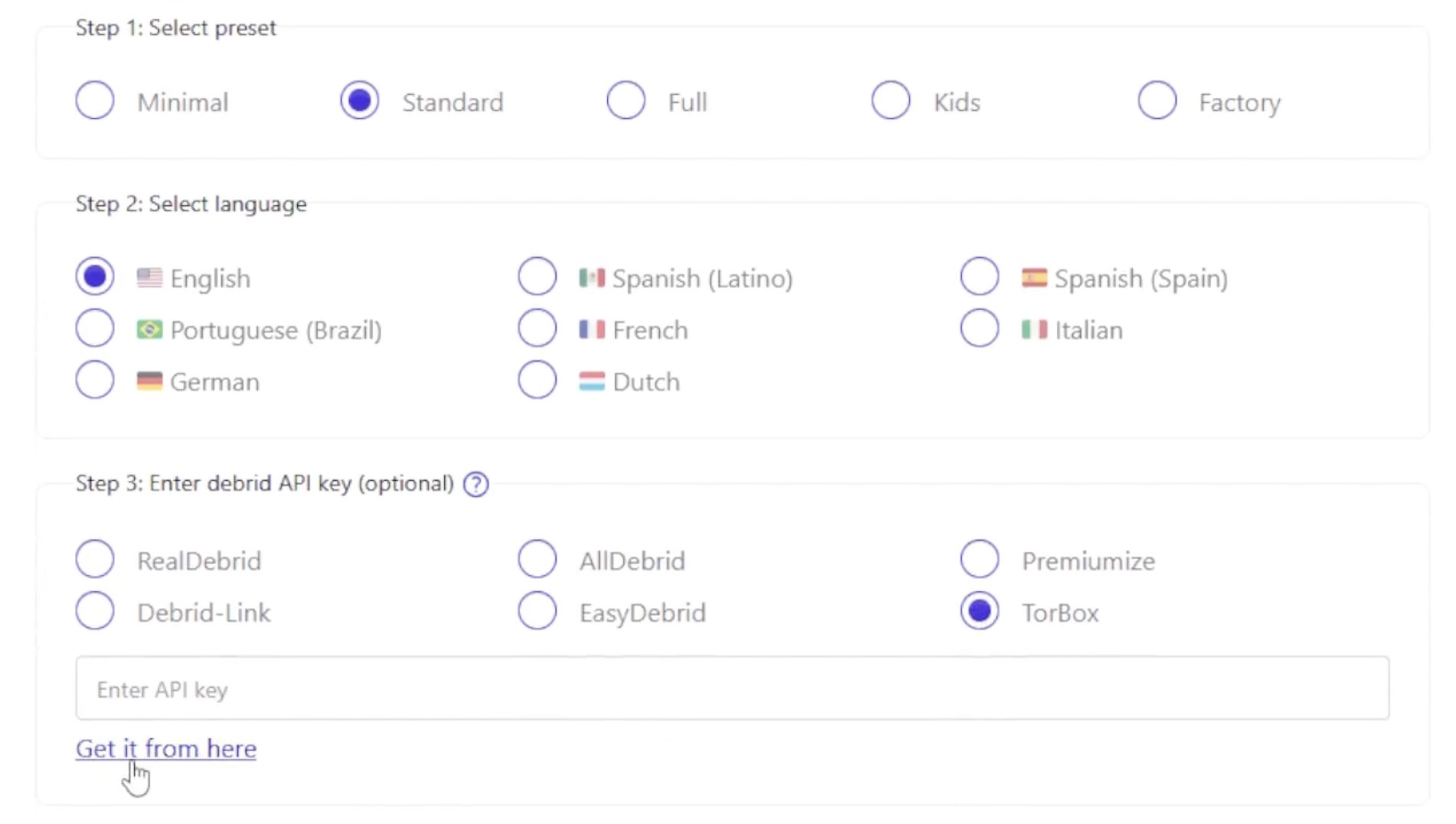
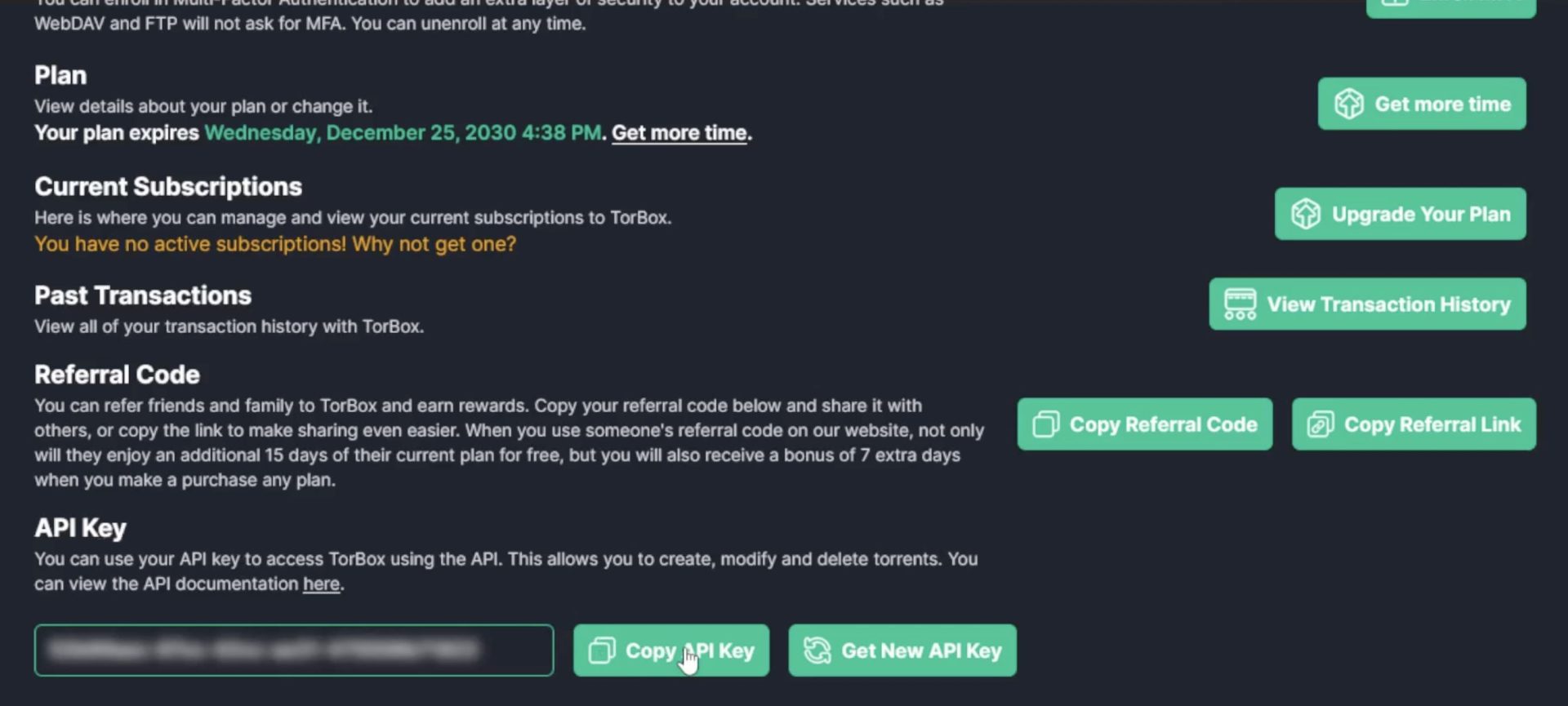
6. A new tab in your browser will open with your TorBox dashboard. Scroll down and click Copy API Key.
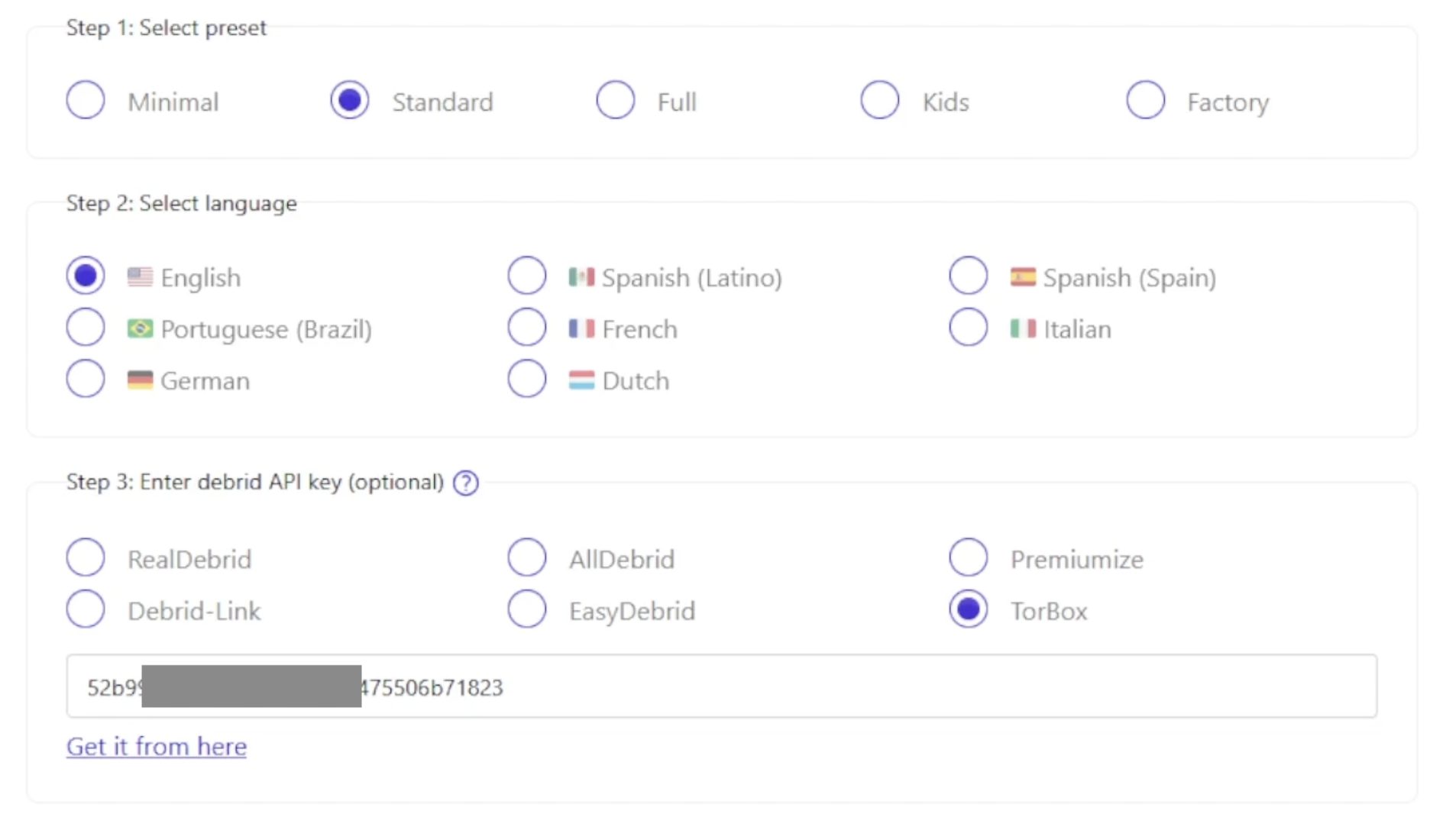
7. Return back to the Bootstrapper and paste your TorBox API Key.
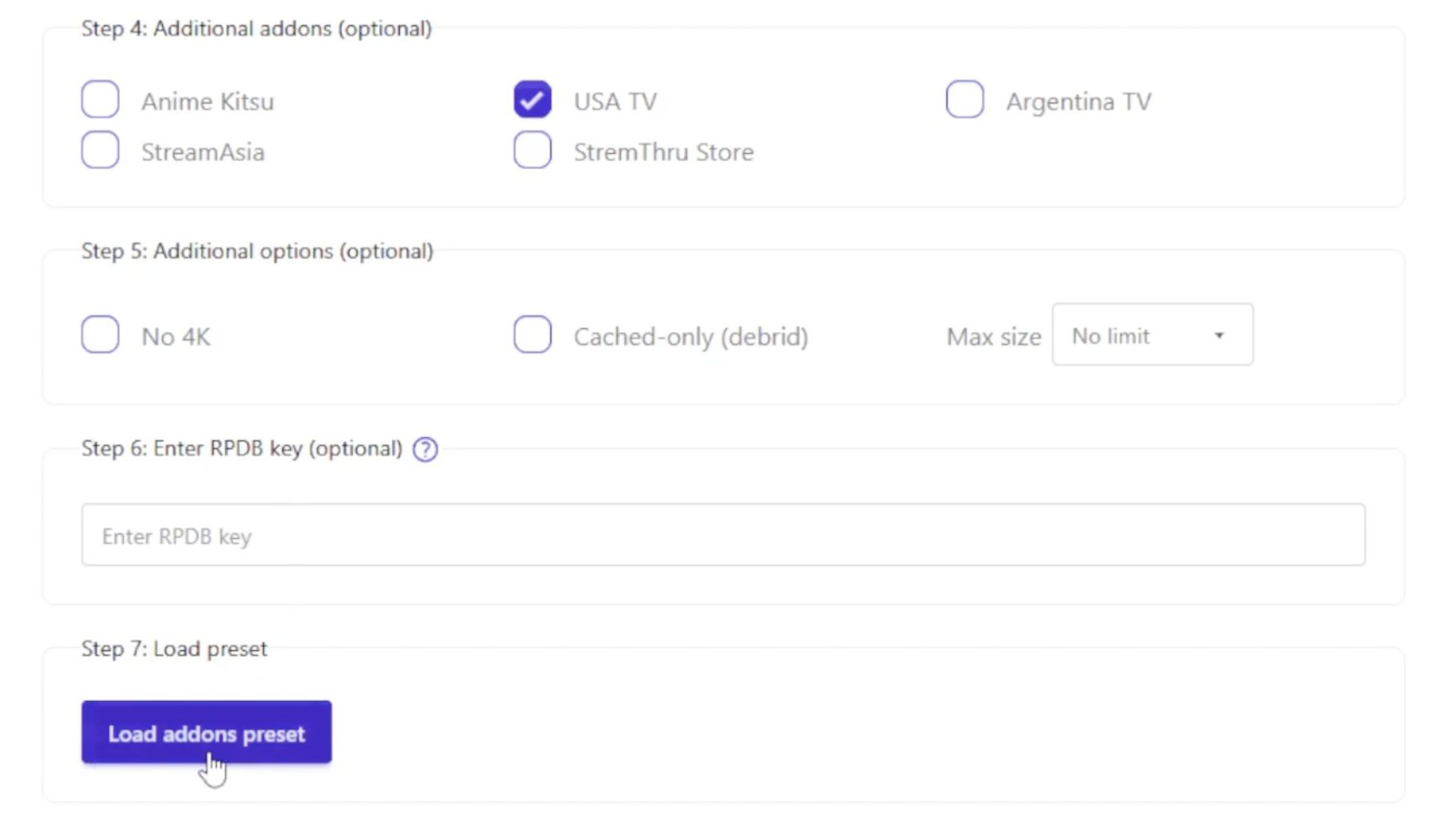
8. The nice part about using the Stremio Bootstrapper is that it will automatically install the best add-ons and configure those with your TorBox account. Choose whatever additional add-ons you want and click Load addons preset.
9. You will then see the add-ons that have automatically been configured. You can customize these add-ons however you want and then click Sync to Stremio.
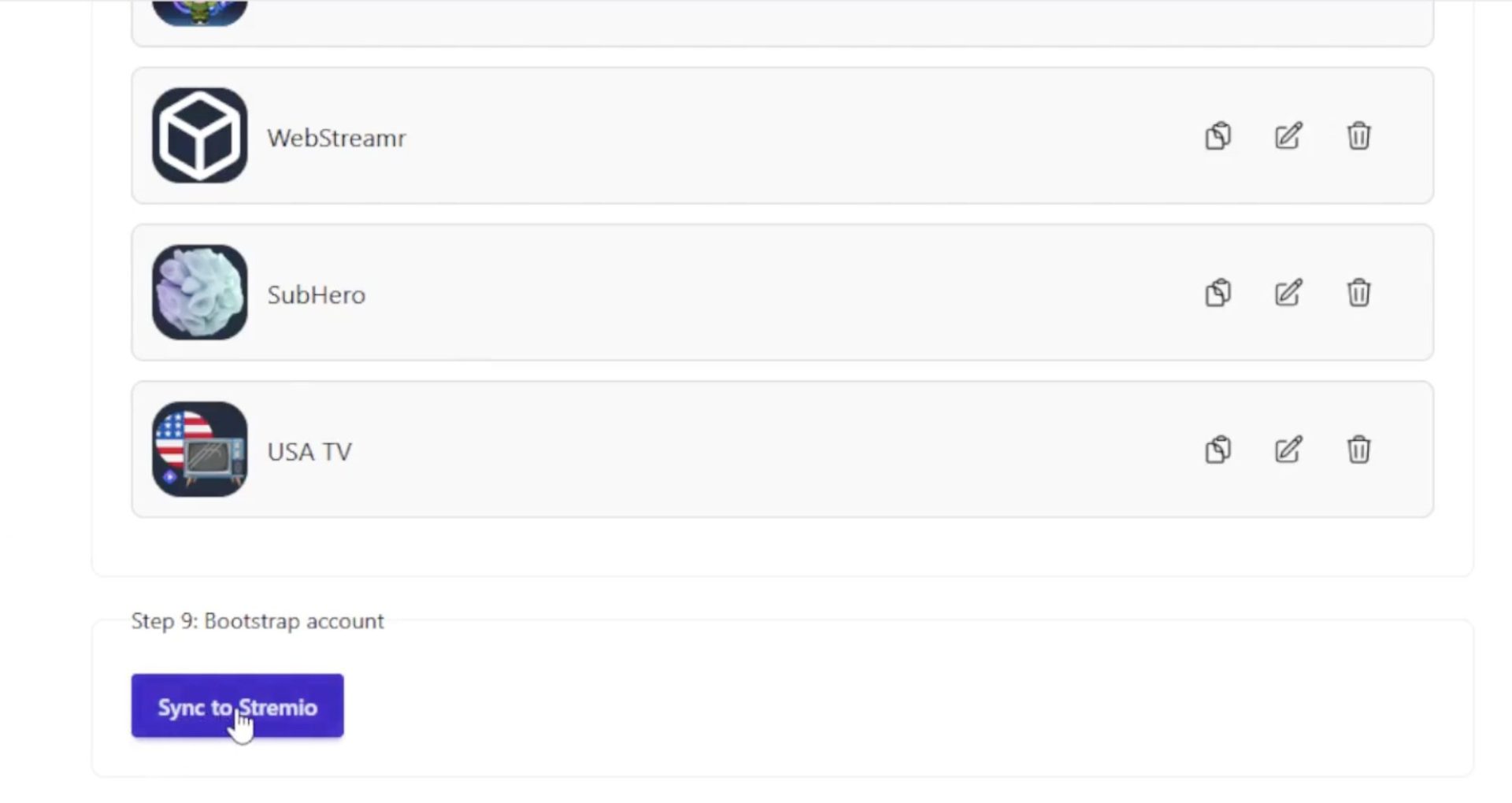
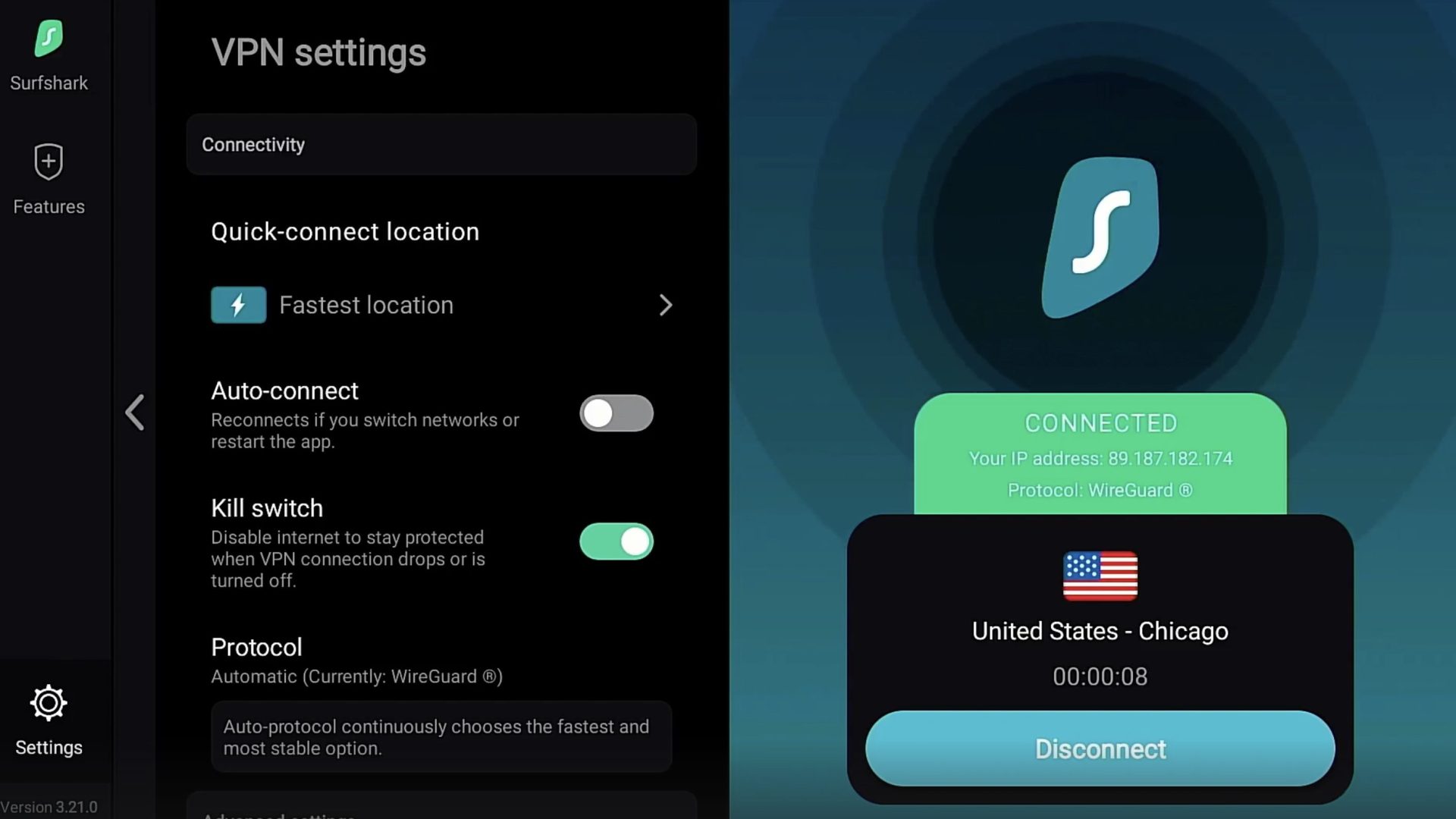
10. Move back to your streaming device and ensure you are connected to Surfshark VPN. We always turn on our Kill switch as well.
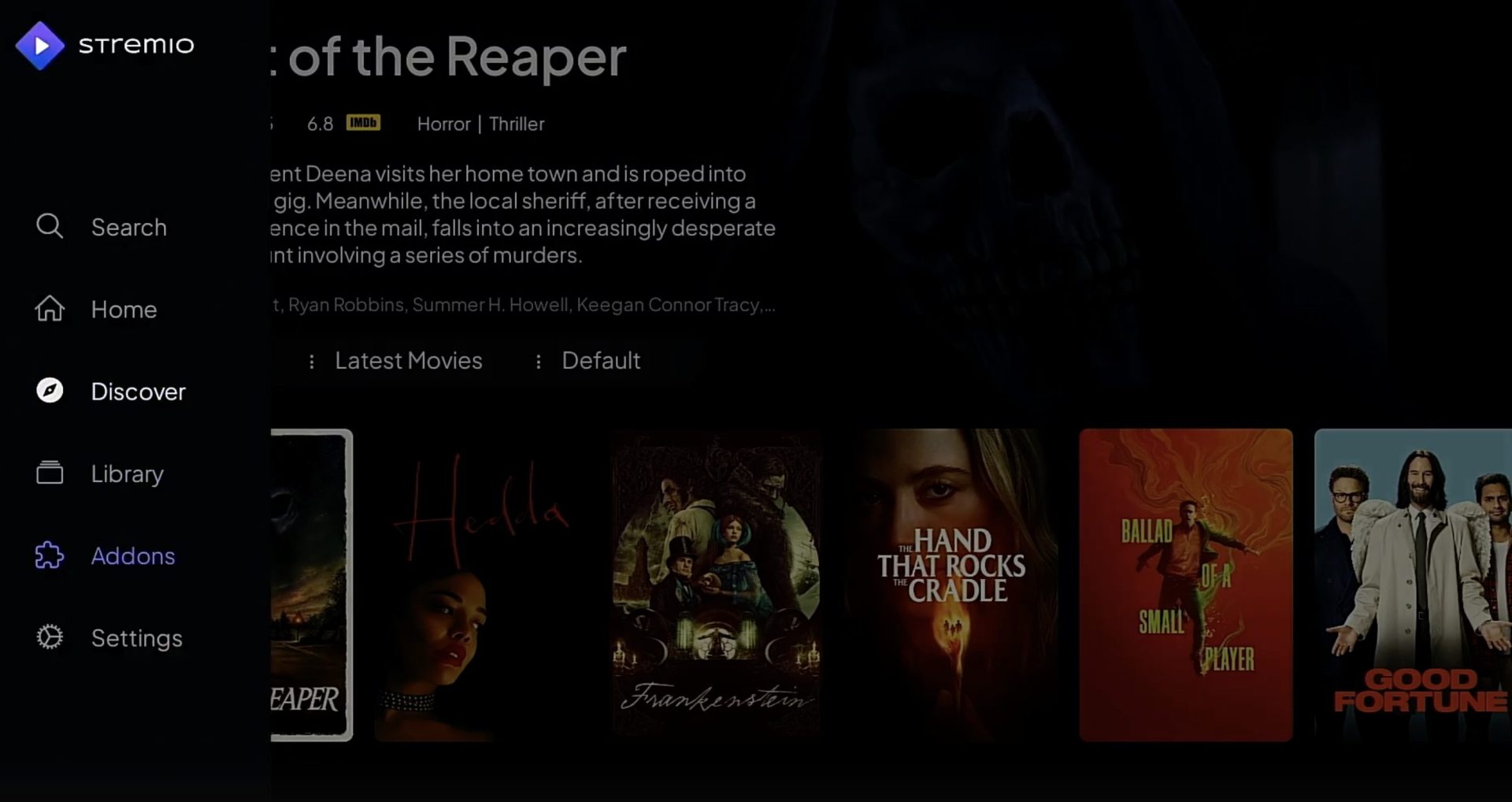
11. Launch Stremio and click Addons.
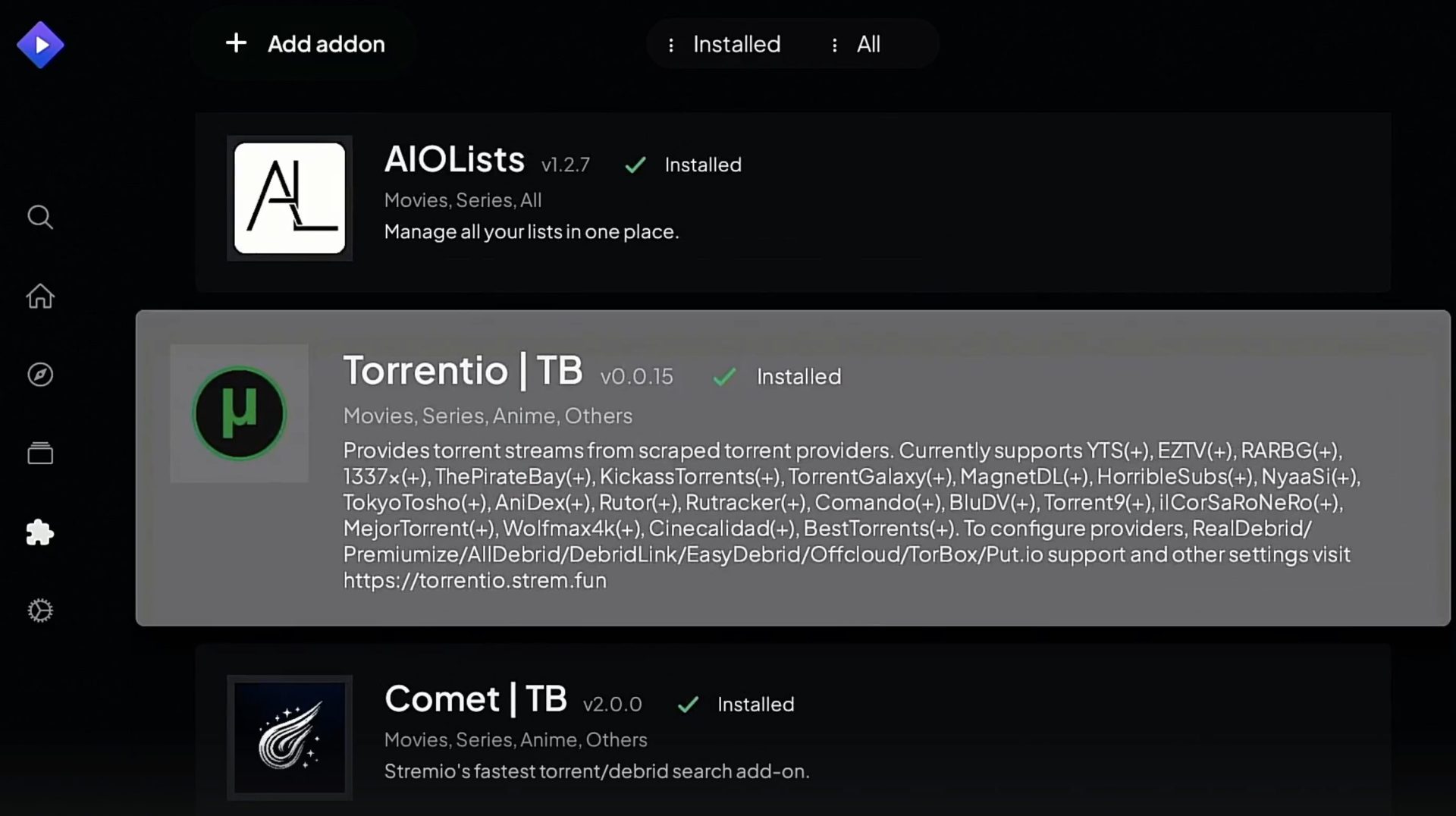
12. You will then see all of the add-ons we just set up within Bootstrapper.
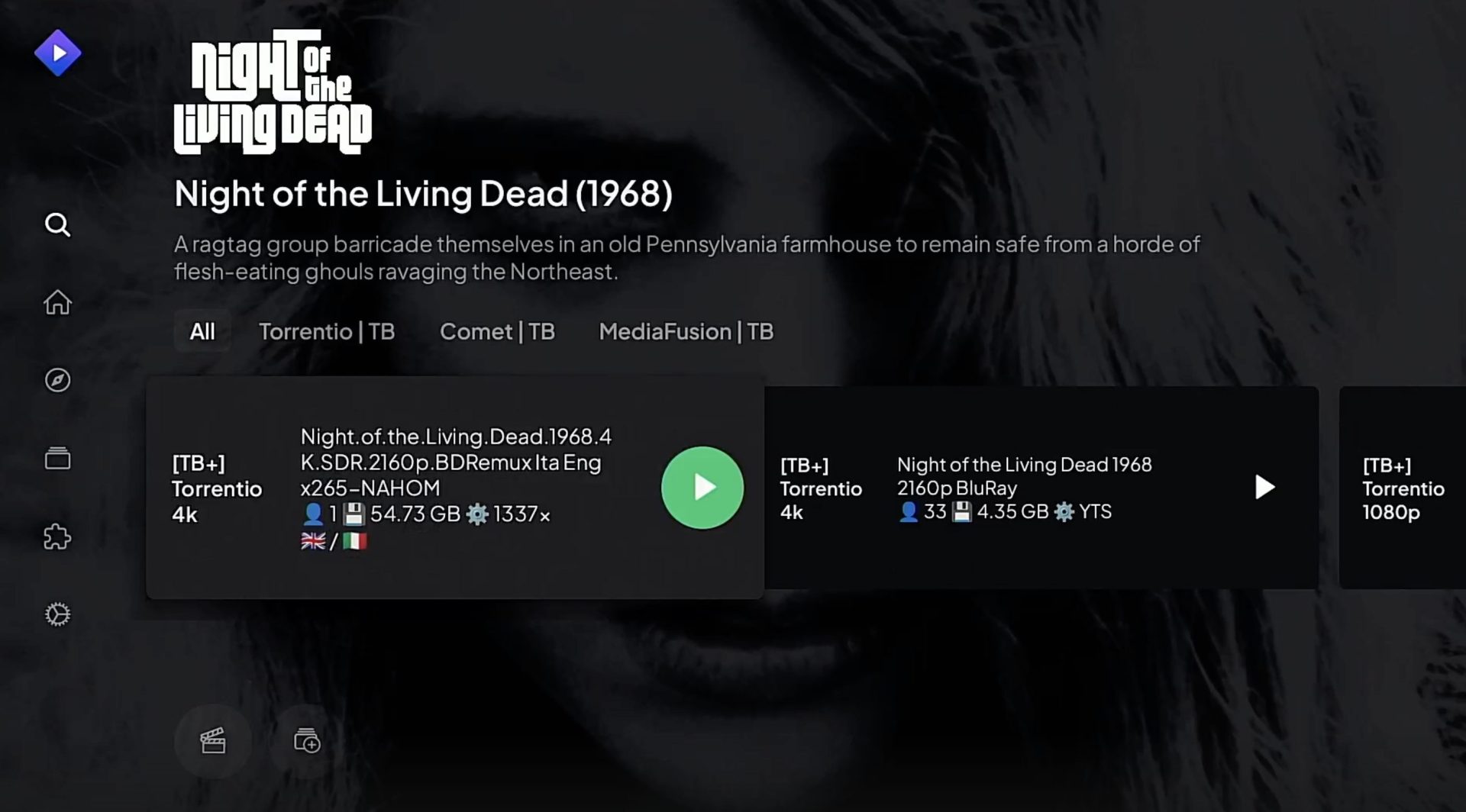
13. Now when playing a movie or TV show you should notice TorBox links.
How to Use Stremio on iOS (iPhone & iPad)
Apple removed Stremio from the App Store in early 2026, so there is no longer a dedicated Stremio app to download on iPhone or iPad.
iOS users can still use Stremio through Stremio Web in a mobile browser, which lets you log in to your account and access your synced add-ons and library. For the full walkthrough, see our Stremio on iOS guide.
How to Fix Stremio Choppy Playback (Bonus Video)
After you have installed Stremio on your preferred device and added your favorite add-ons, you may encounter lag/glitching when watching movies and shows.
Here’s a helpful video that shows how to fix choppy video playback for a better experience. For more buffering, addon-outage, and VPN-blocking fixes, see our full guide to common Stremio problems.
Stremio Features & Details
There are several features available with the Stremio application that will make your experience even better.
The most important, however, is the addition of addons which is where the real power of this platform comes from. It is basically unusable without these plugins.
Addons
While there are hundreds of different options to choose from, most only need a few 3rd party addons to get the media they want to watch.
You can browse the web for various options, but we’ve done the heavy lifting and compiled a list of the top add-ons available for your reference.
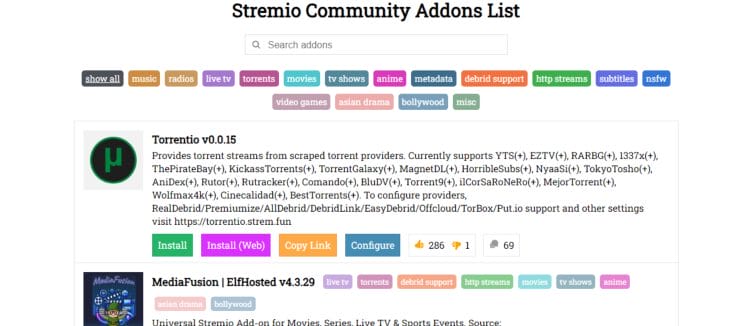
Users can install these onto their PC or “home” Stremio app and then they will automatically sync to all of your applications across various devices (Firestick, iPhone, etc.)
A great way to get started is by adding the Torrentio Addon to your Stremio library as this is the most popular option available and will get you streaming immediately. You can also add IPTV to Stremio with an M3U/EPG addon if you want live channels alongside on-demand content.
Categories
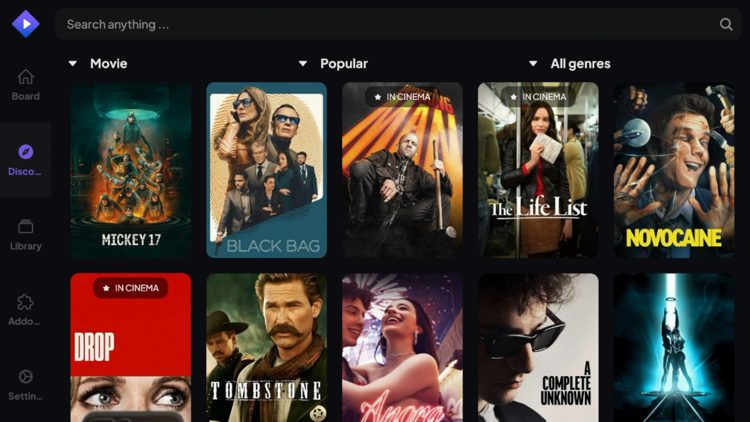
The categories offered by Stremio include Discover, Library, Add-ons, and Settings. Inside the ‘Discover’ category you will find subcategories for movies and TV shows.
Settings & Playback
Within the settings menu are numerous options to cater to your personal preference. Users can adjust the Interface including Language and theme options.

There are also various video playback options available. Here we can adjust audio settings and more.

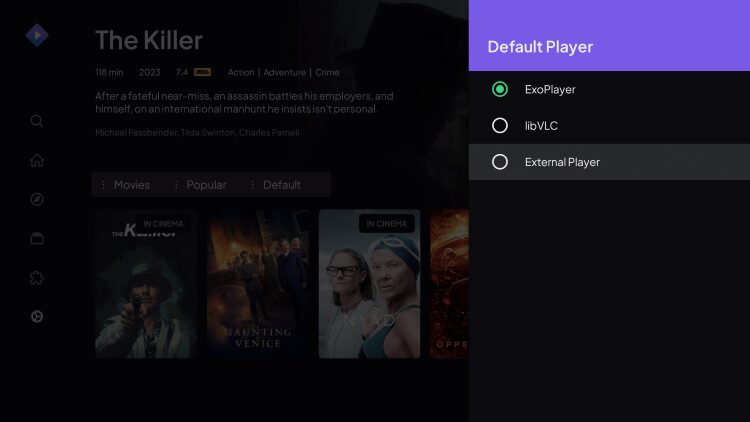
Users can also integrate an External Video Player for use instead of the Default ExoPlayer. If you choose to do this, we suggest using MX Player or VLC Player.
The best way to find all the features associated with this app is by testing it on your device.
Stremio App Review
Here’s our take on the Stremio app, covering both the good and the bad.
What We Like
- Completely free, no ads, no subscription, and no premium tier locking away features
- Add-on system brings movies, TV shows, anime, and live channels into one interface
- Account sync carries the library and watch history across all your signed-in devices
- Works on nearly every platform, including a web browser version for any system
- Pairs well with TorBox, Premiumize, AllDebrid, and other debrid services for better link quality
- Works well with popular VPN providers
- External player support for MX, VLC, and the Just Player when ExoPlayer has playback issues
- Stremio Account Bootstrapper auto-configures the best add-ons with your debrid account
- Clean VirusTotal scan
What We Don’t Like
- Removed from the Apple App Store and Amazon Appstore as of early 2026
- Useless without add-ons, which every user must install before streaming anything
- Add-ons sometimes go down, leaving fewer working sources until they come back
- Many third-party add-ons are unverified
- iOS users now rely on the browser-based Stremio Web
- Google Play version often lags behind, so the Toolbox app is the better download
- Occasional buffering on free sources without a debrid service paired
Stremio remains the most capable free streaming app available, and the add-on system is what makes it worth setting up. The 2026 app store removals sting, but sideloading through the Toolbox keeps the experience intact on Fire TV and Android TV.
For the best results, pair it with a debrid service to cut buffering and run a quality VPN whenever you use unverified add-ons.
Is Stremio Legal?
It’s impossible for TROYPOINT to determine whether these unverified applications hold the proper licensing.
Stremio by itself is a legal media player, as it can be installed from verified app stores like Google Play. However, some content provided by third-party add-ons does not have the proper copyright licensing.
If you use this application, make sure to only view titles available within the public domain. The end-user is responsible for all content accessed through apps such as Stremio.
You can view Stremio’s terms and conditions page for more details on legality.
Is Stremio Safe to Use?
When using unverified streaming apps from 3rd party developers, it is important to know what comes with these applications.
We scan these apps with VirusTotal which is a malware service available on streaming devices and more. Here is the screenshot of the scan results:
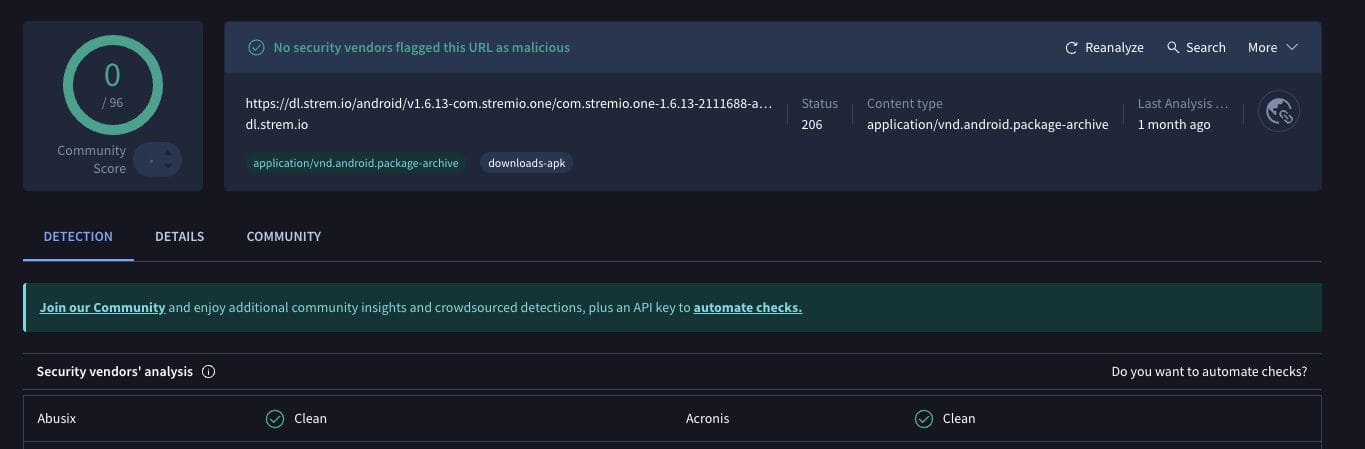
VirusTotal did not find any suspicious files within the APK from the TROYPOINT Toolbox. It’s important to only install APKs from reputable sources.
However, using a VPN with the Stremio application is extremely important if you decide to use unofficial add-ons.
Troy’s Final Thoughts on Stremio
Many love the Stremio application for its usability and high definition content that is all built into the fabulous interface we see on just about every device.
With syncing capabilities, you can access your Stremio favorites no matter where you are and this makes it extremely easy to use.
If you are a Kodi user that is bored with the layout of this popular application, you may want to consider Stremio that is more updated and has better integration options for streaming content. See how the two stack up in our Stremio vs Kodi comparison.
Have you installed Stremio on your devices yet? Let us know if you enjoy this application in the comments below!
The post How to Install Stremio App on Firestick & Android TV (2026 Guide) appeared first on TROYPOINT: Tech Tutorials On Firestick, Kodi, Android TV Box, VPN, IPTV, Streaming, & More.