

The following step-by-step tutorial will show you How To Install and use Analiti Speed Test on Android TV, Google TV, and Fire TV devices.
In this guide, we will install Analiti on the Onn 4K Pro. However, these instructions will also work on any other Android or Google TV Box as well as Firestick/Fire TV and popular Smart TVs.
How To Install Analiti Speed Test on Android/Google TV & Fire TV
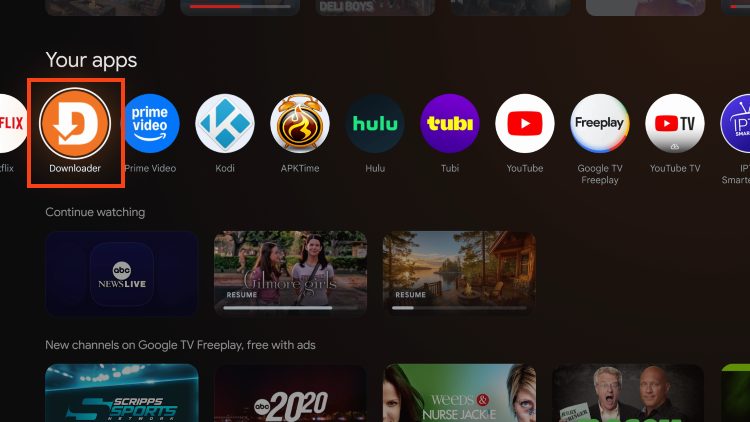
1. Install the Free Downloader App from your respective App store and enable Unknown Sources. Open Downloader.
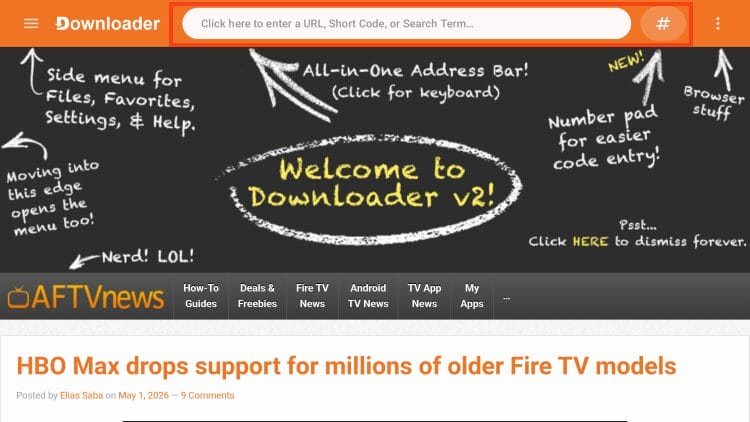
2. Click the URL Bar or Hashtag icon to launch the keypad.
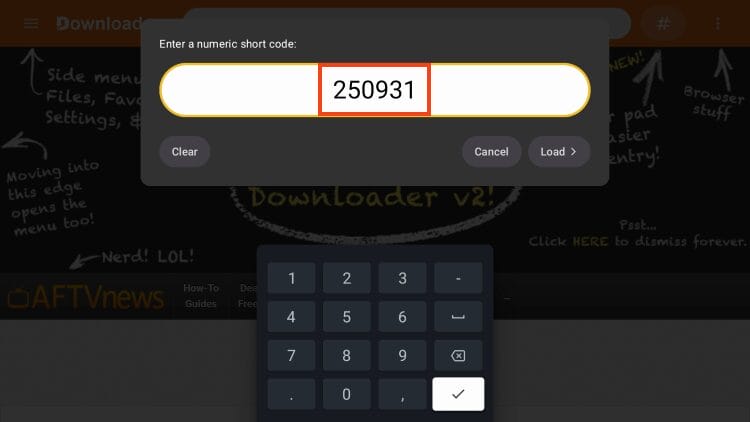
3. Type 250931 (Downloader Code for the TROYPOINT Toolbox) and click Load.
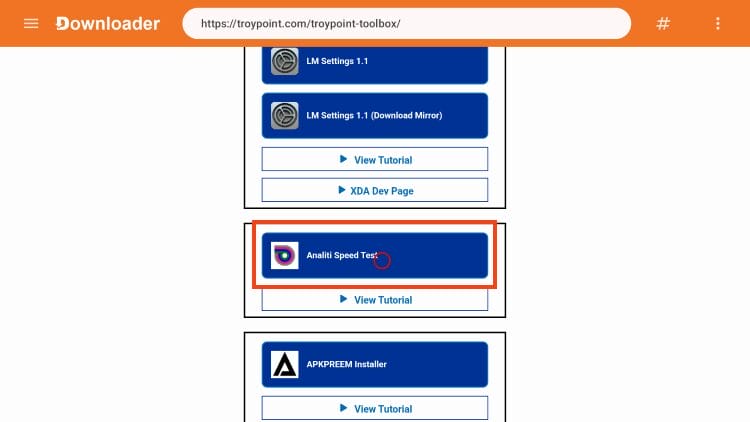
4. Scroll down to find Analiti and click the latest release.
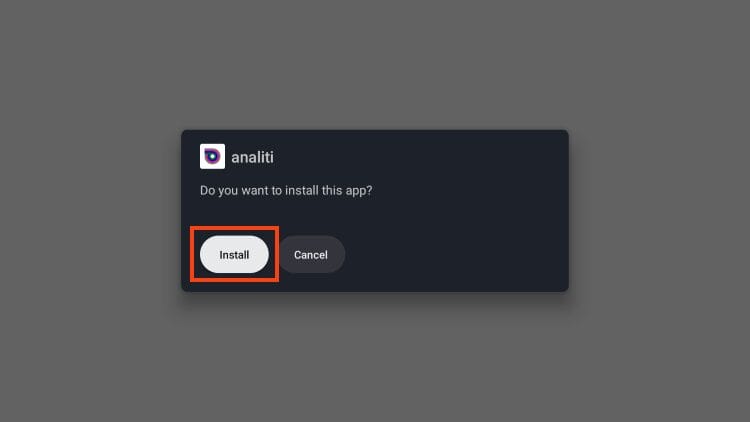
5. Select Install.
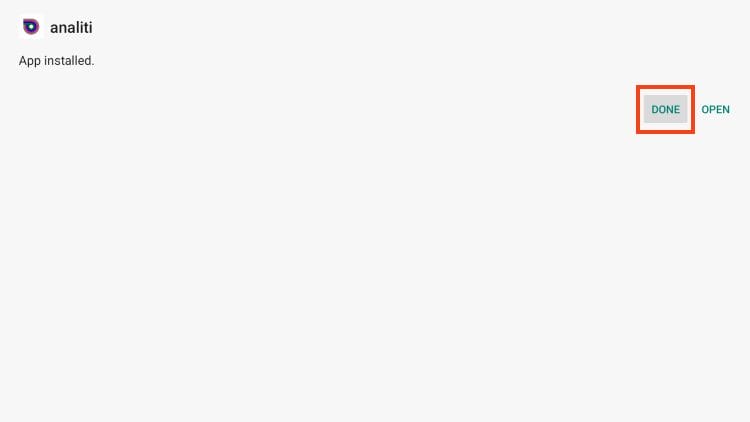
6. Choose Done.
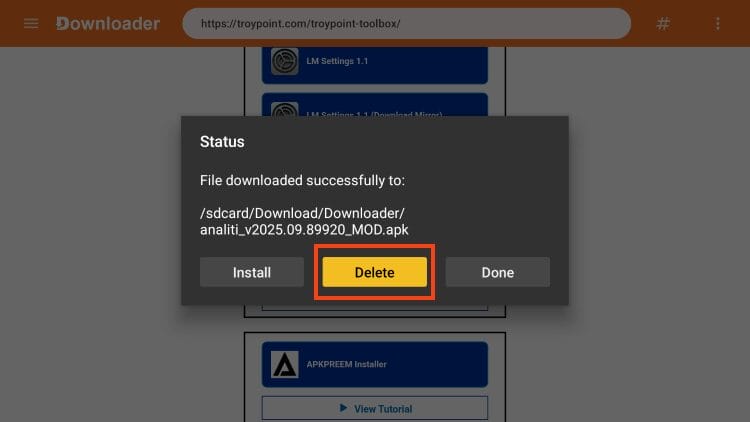
7. Click Delete.
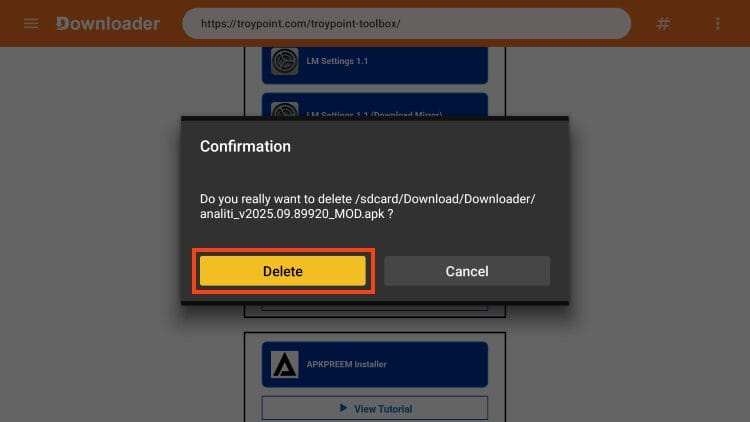
8. Choose Delete again to remove the installation file.
9. Return to your device’s home screen and you will see Analiti installed.

Enjoy!
How to Use Analiti Speed Test
After installing Analiti and launching the app, it will automatically begin running a speed test on your device.
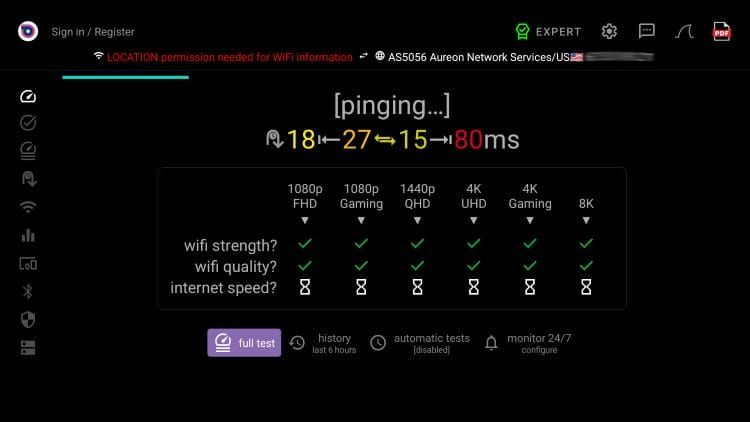
Once it has finished, you will see your Download & Upload speeds with a complete breakdown of your wifi strength, quality, and more.
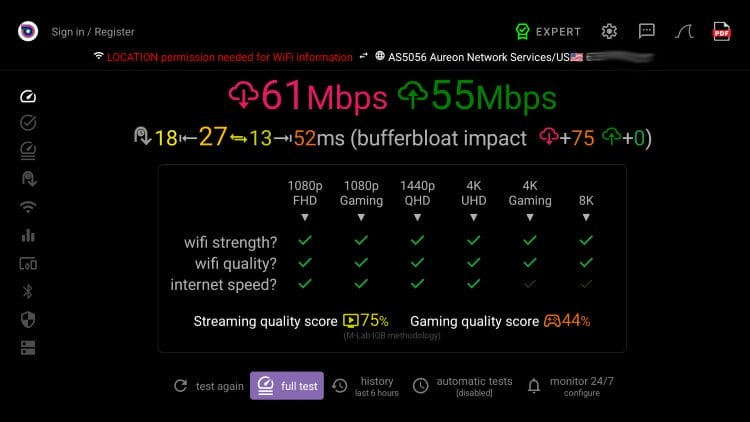
It also provides you with a streaming quality score and gaming score for those who may want to play games on their media device.
Speed Test isn’t the only thing that Anilit can do, if you open the side menu, there are numerous options available.
This includes:
- Basic Test
- Validator
- RTT Test
- WiFi Networks
- WiFi Channels
- Connected Devices
- and more
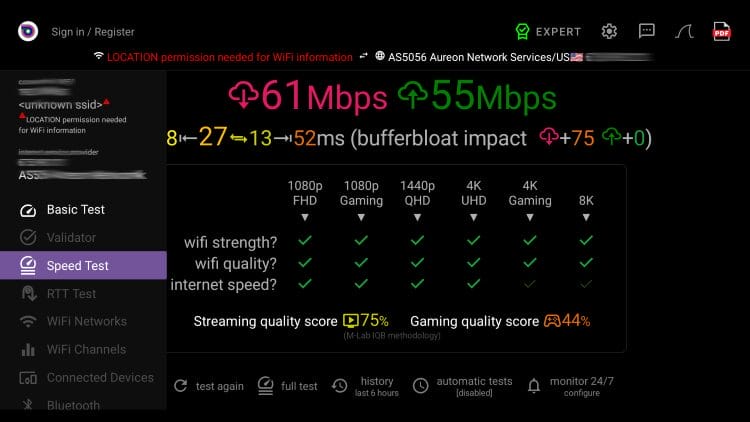
Using some of these may require you to allow permission and you will be prompted to do so.
We suggest checking out all of the features Analiti provides and how you can use it to your benefit.
If you use Analiti on your Android/Google TV or Fire TV device, let us know what you think of it in the comments below!
The post How to Install & Use Analiti Speed Test (Android TV/Fire TV) appeared first on TROYPOINT: Tech Tutorials On Firestick, Kodi, Android TV Box, VPN, IPTV, Streaming, & More.