

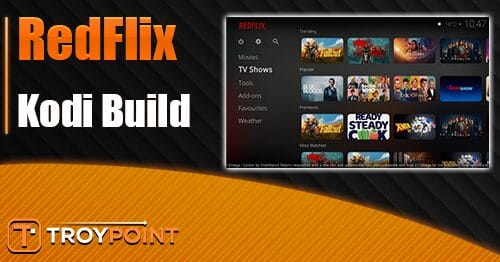
This tutorial will provide you with instructions to install the RedFlix Kodi Build on your preferred device.
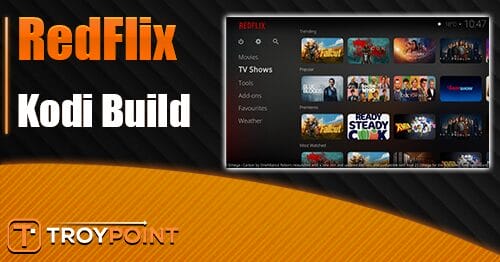
RedFlix is a popular Kodi build that comes from the Red Wizard repository which is famous for hosting numerous well-known choices including the Red Wizard Build and more.
It is extremely lightweight and has a familiar interface similar to the user interface we see in popular streaming apps. This makes navigation a breeze for browsing through provided content quickly and efficiently.
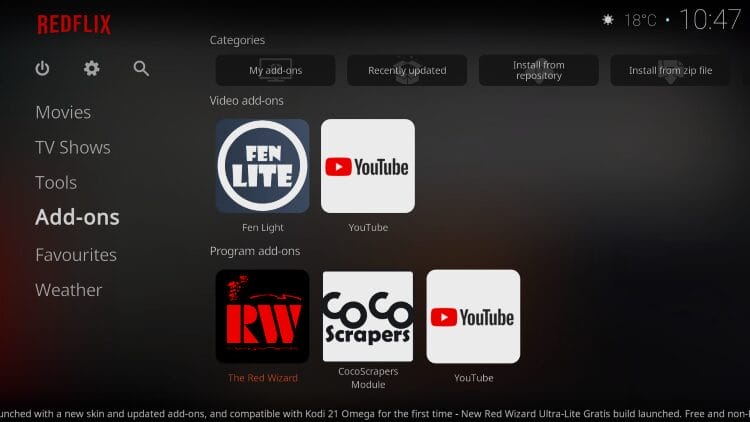
The only add-on pre-installed within this build is the Fen Lite addon which uses real-debrid or other premium resolving service for the highest quality links. We provide instructions for integrating real-debrid in the screenshots below.
How to Install RedFlix Kodi Build
1. Open Kodi and select the Settings icon.
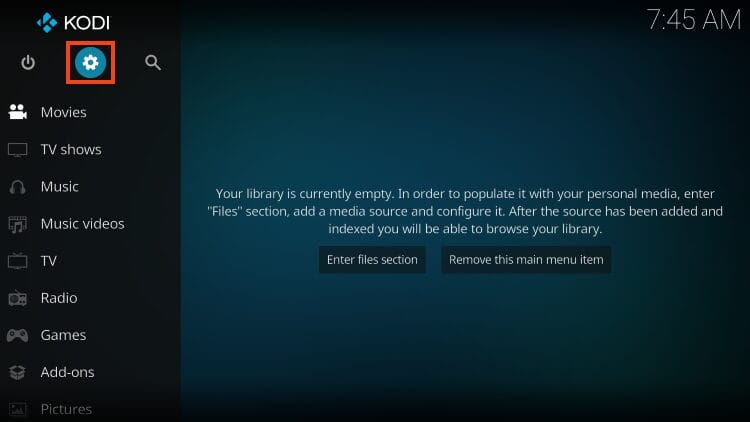
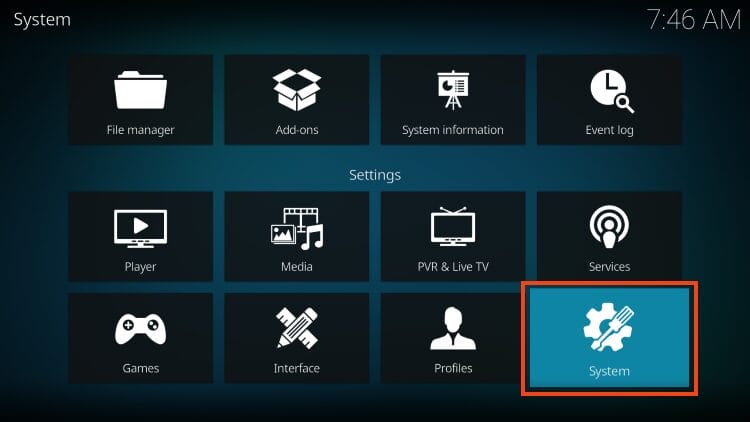
2. Select System.
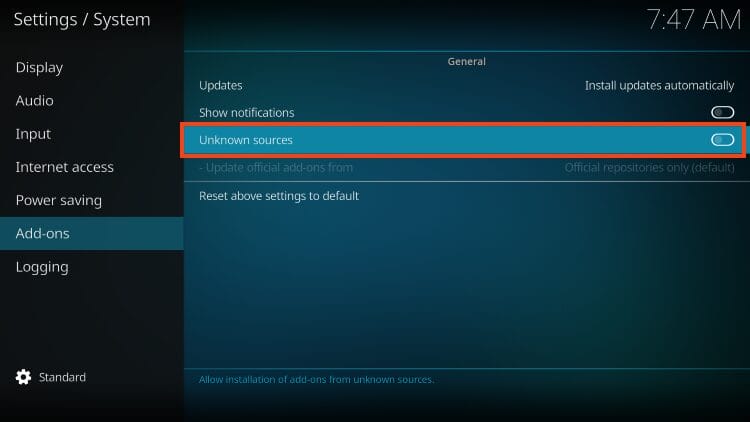
3. Hover over Add-ons and click Unknown sources to turn this on.
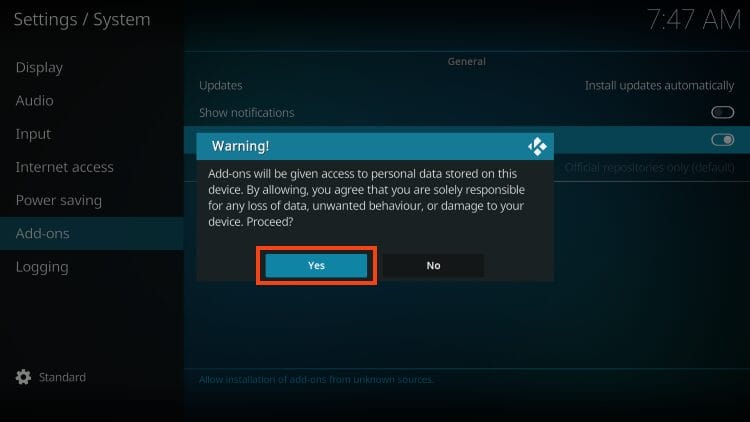
4. Read the important message that states Add-ons will be given access to personal data stored on your device. After you have enabled your VPN, click Yes.
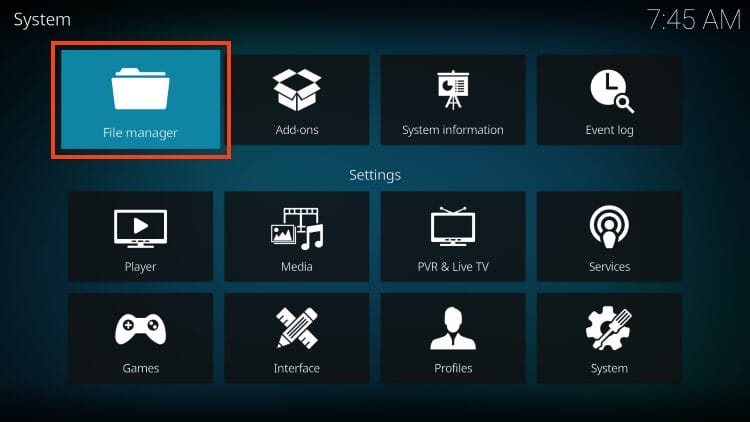
5. Go back to the System page and select File Manager.
6. Click Add source.
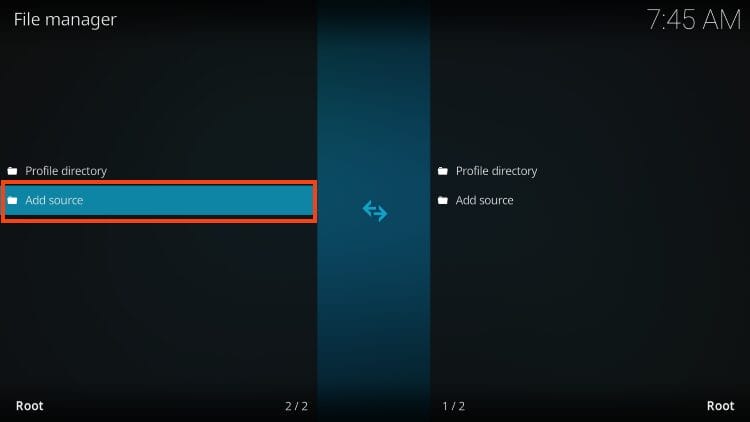
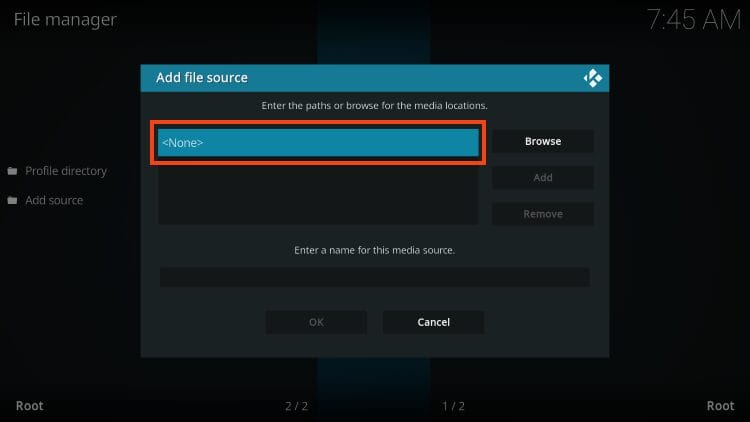
7. Click <None>.
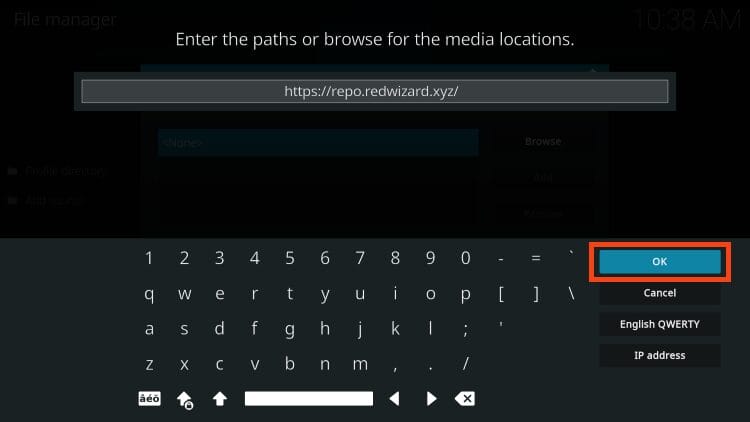
8. Type the repo URL https://repo.redwizard.xyz/ exactly as it is spelled here and click OK.
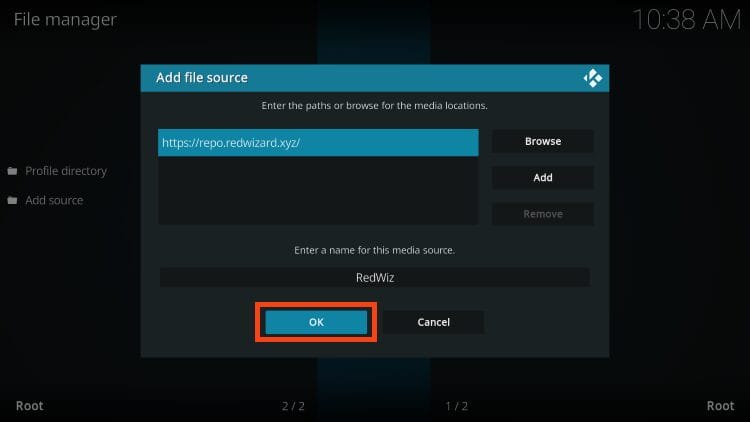
9. Enter a name for the media source such as RedWiz and click OK.
10. Return to the Kodi System page and choose Add-ons.
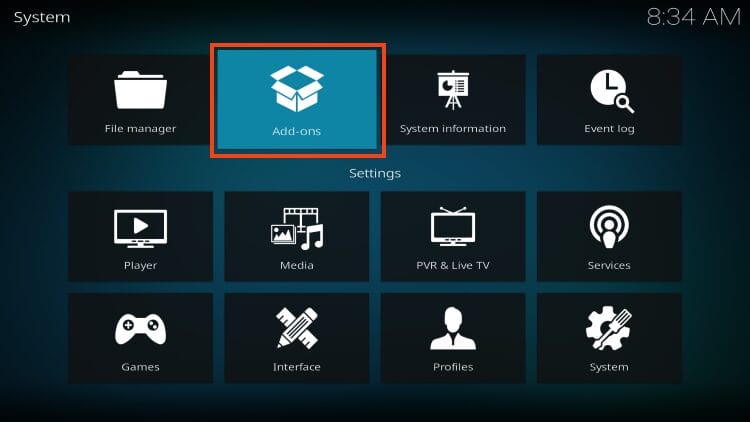
11. Select install from zip file.
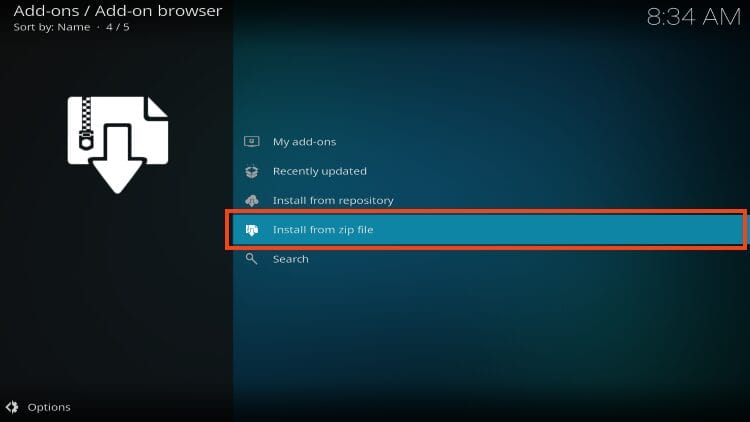
12. Choose RedWiz or other name that you assigned this previously.
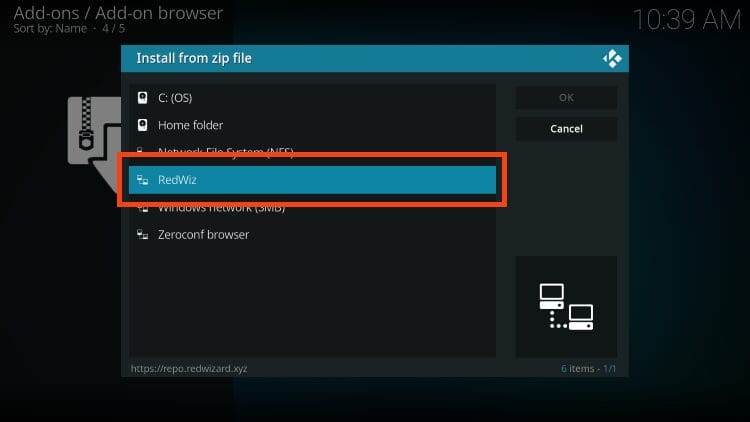
13. Click the zip file repository.redwizard.zip.
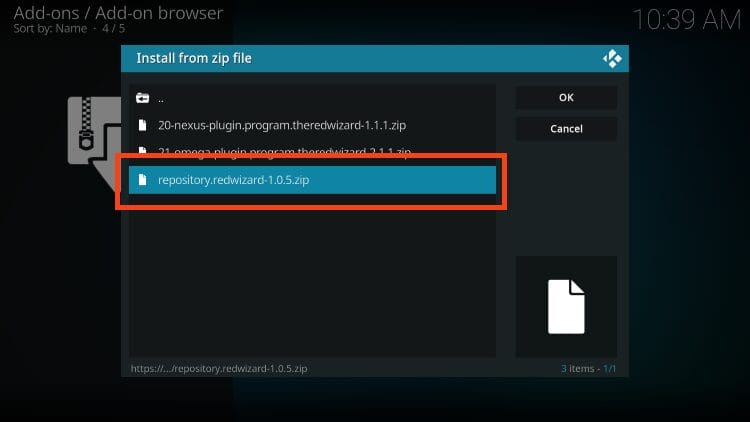
14. You will then see the repository add-on installed message appear.
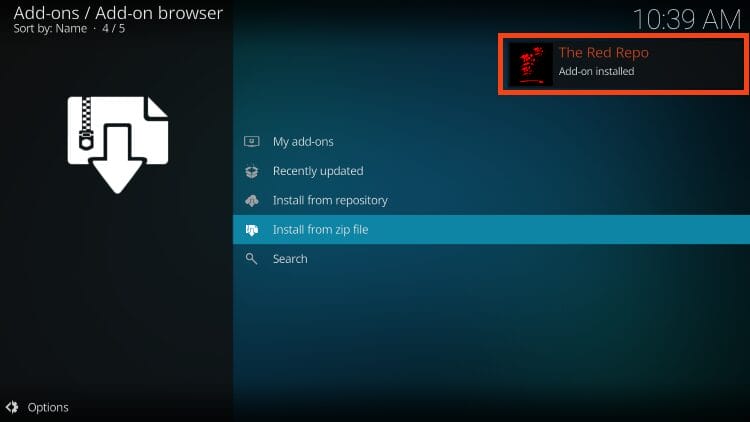
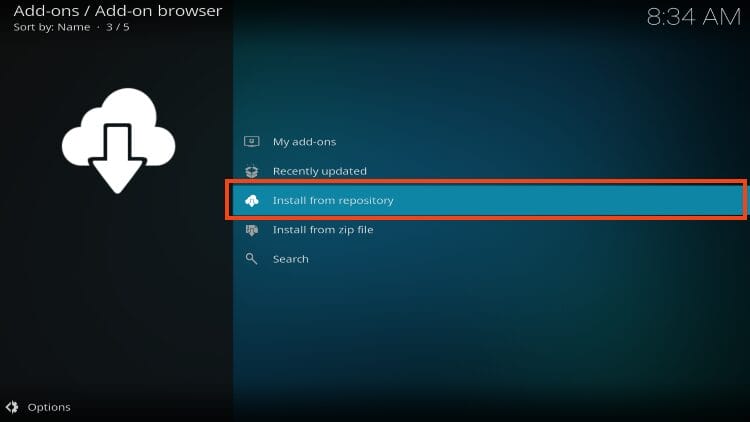
15. Now click Install from repository.
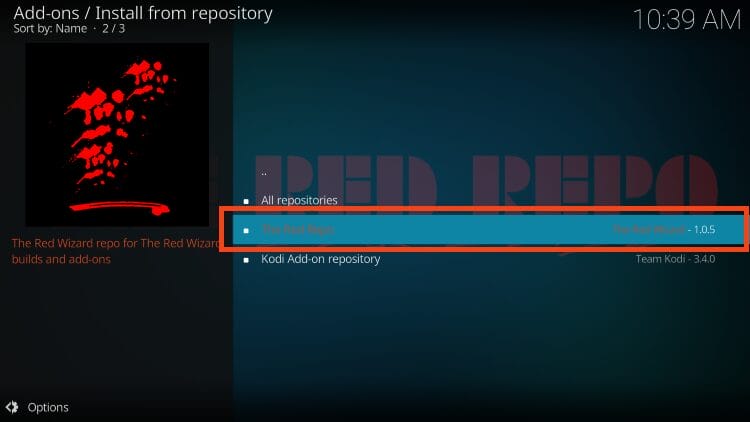
16. Select The Red repo.
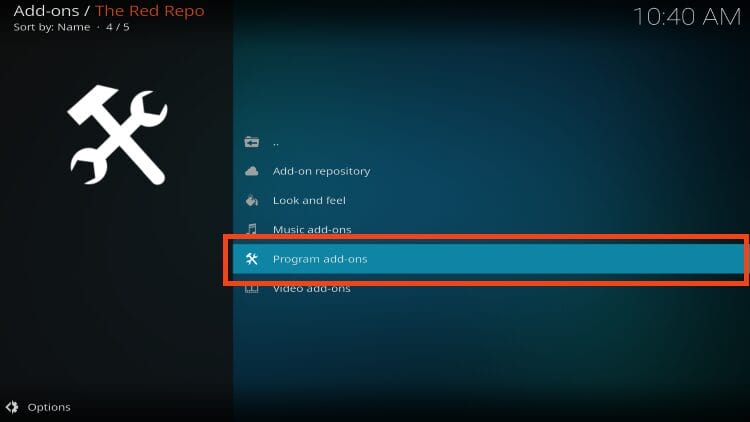
17. Choose Program Add-ons.
18. Select The Red Wizard.
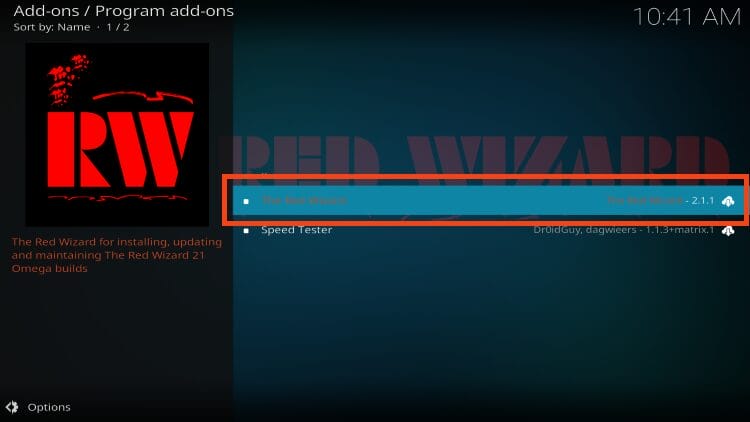
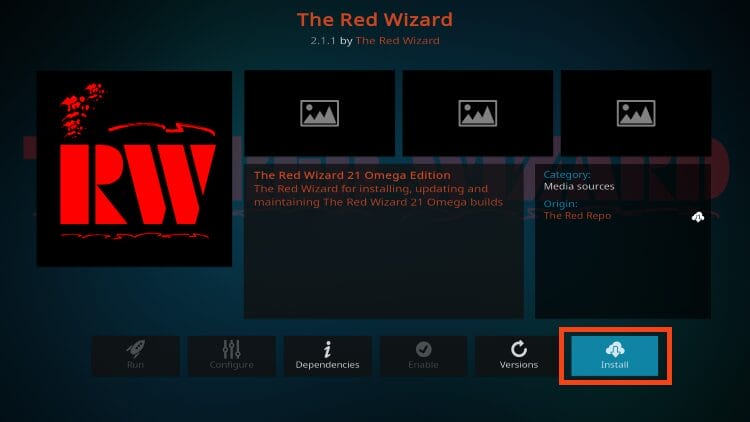
19. Click Install.
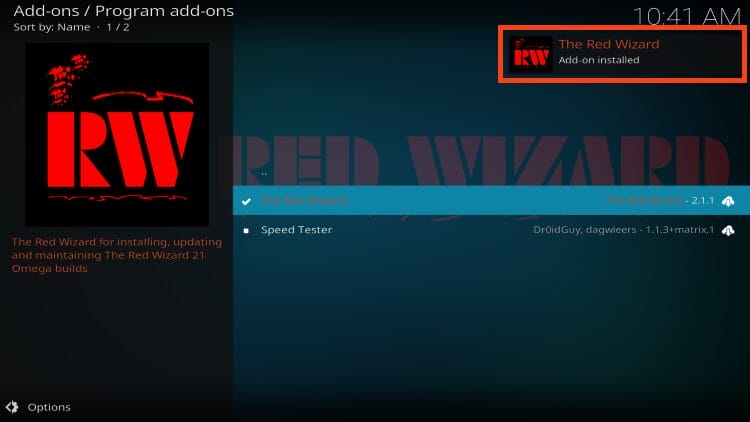
20. You will see The Red Wizard Add-on installed message.
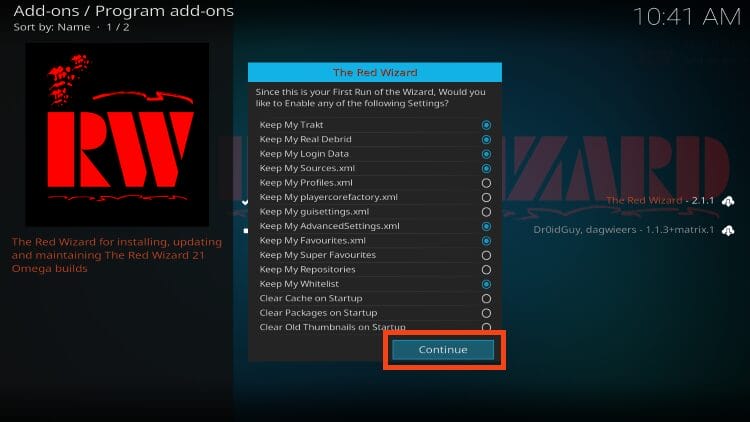
21. Click Continue.
22. Select Build Menu.
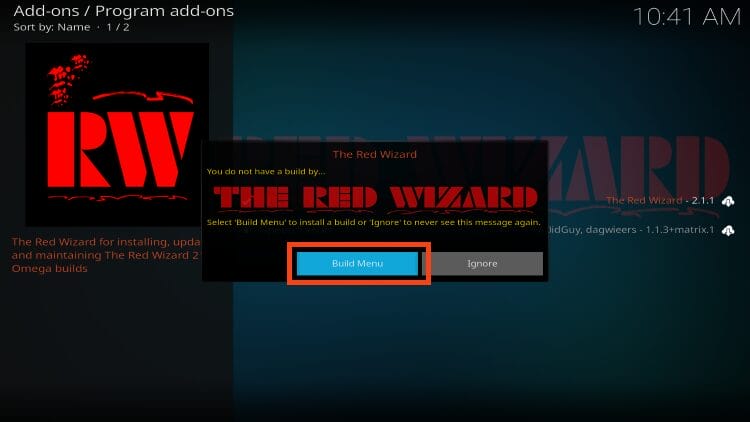
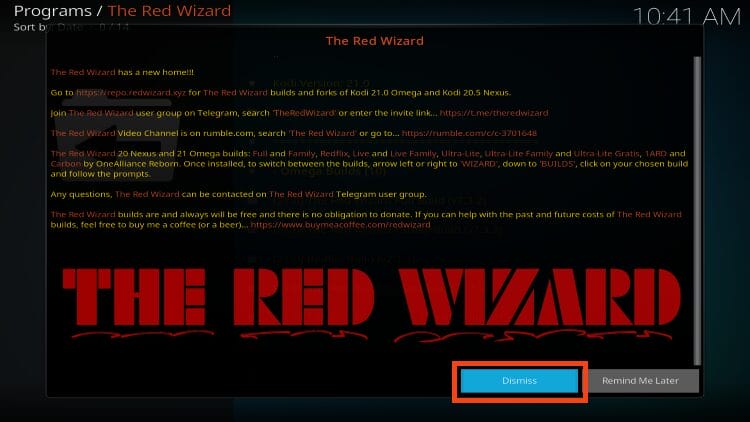
23. You will then see the Red Wizard welcome message with Telegram info, Rumble channel, and more including a donation link if you wish to donate to the developer!
Click Dismiss.
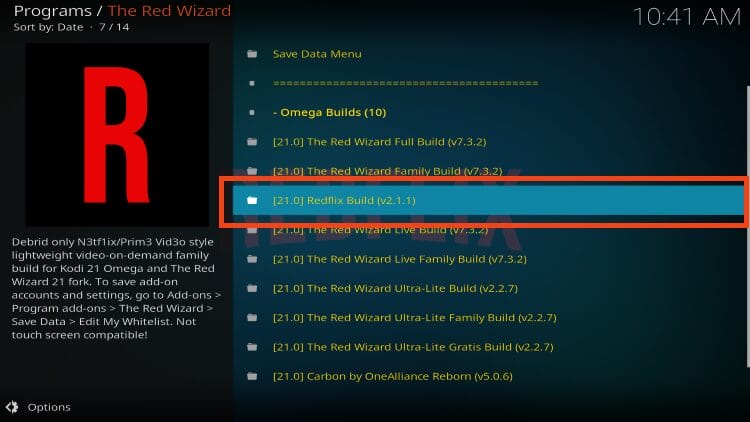
24. Choose Redflix Kodi Build.
25. Click Install.
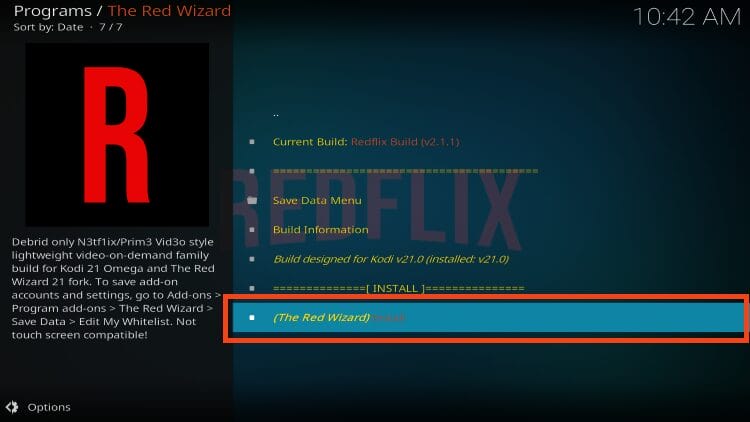
26. Select Yes, Install.
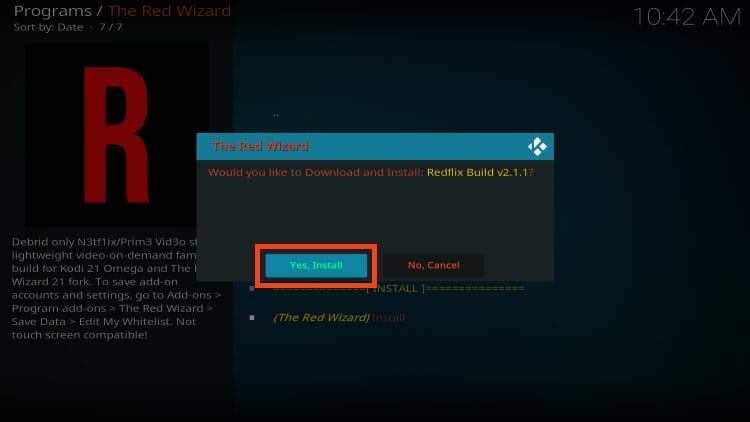
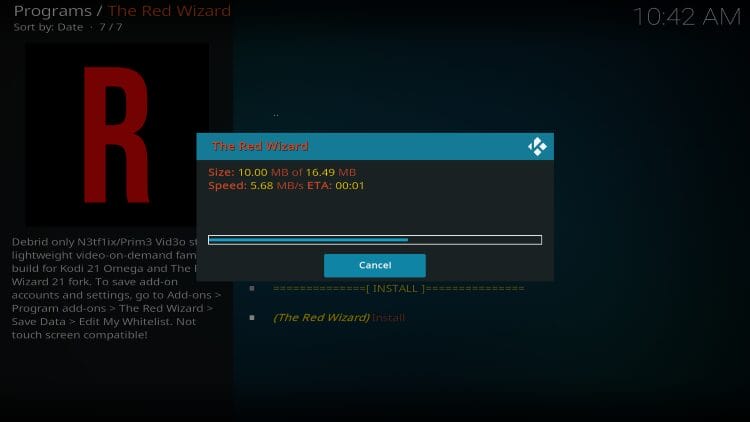
27. Wait for the build to download.
28. When prompted, click OK.
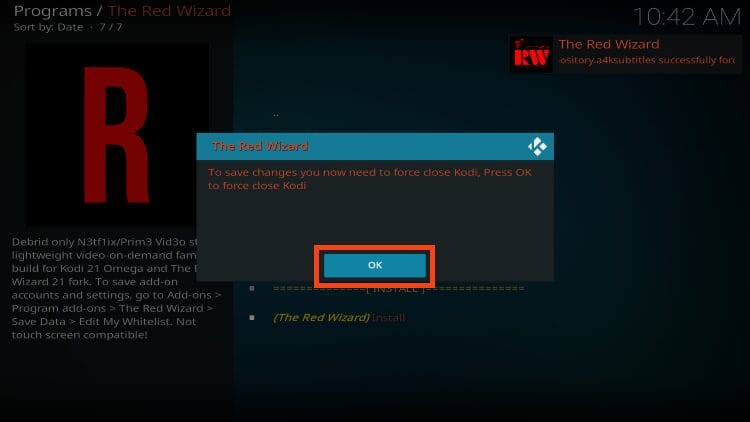
Kodi will close and you can re-launch the application to see Redflix installed. Enjoy!
How to Authorize Real-Debrid
As we stated earlier, because the Fen Lite addon is the only provider for streaming links, we must integrate a real-debrid account which you can follow along with below.
- From the home screen, open Tools.

- Click Settings.
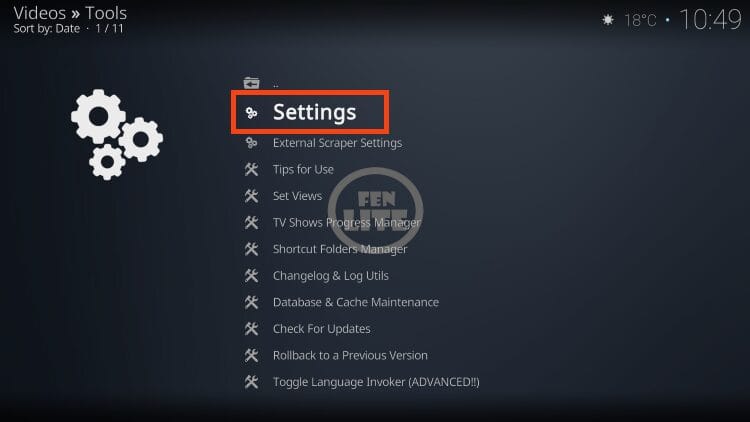
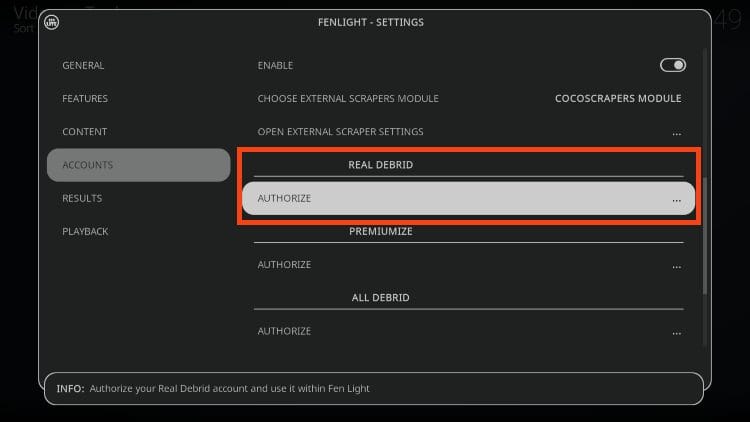
- Hover over Accounts and scroll down to find real-debrid. Click Authorize.
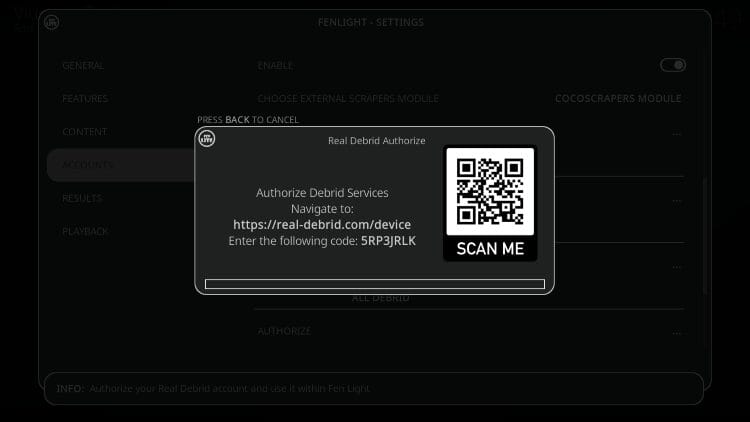
- You will then see a real-debrid authorization code. Go to real-debrid.com/device and enter your code.
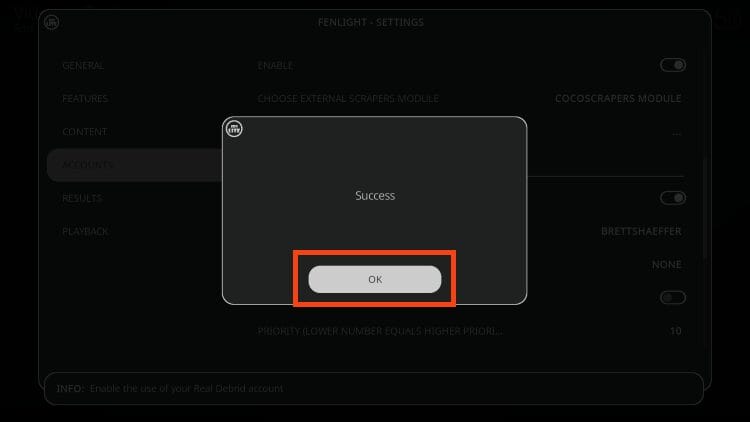
- Return to Redflix and you will see the success message. Click OK.
If you are a fan of lightweight Kodi Builds that feature Movies and TV Shows, give Redflix a try! You won’t be disappointed.
RedFlix Build Features & Details
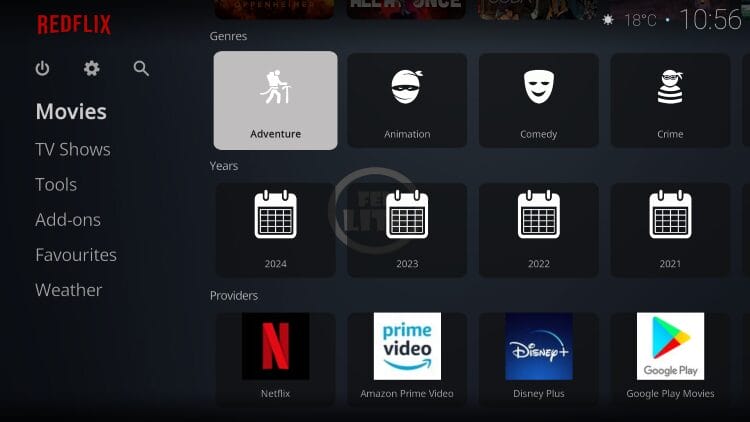
As you may have noticed when installing, Redflix is only 17mb which makes it extremely lightweight and functional on any device. There are only a few categories available and this includes Movies:

TV Shows:
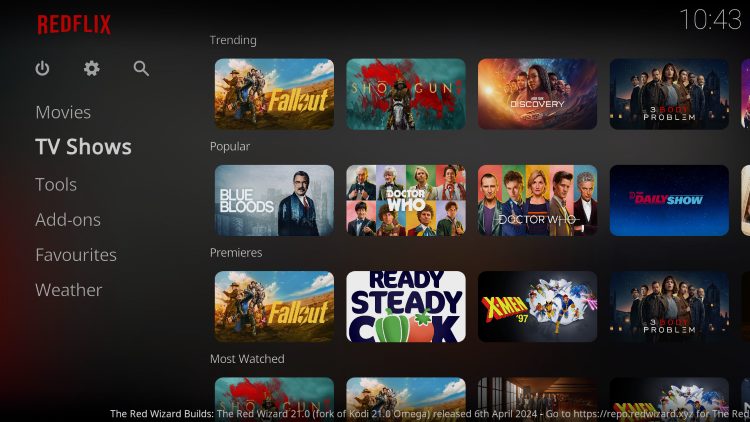
Add-ons:
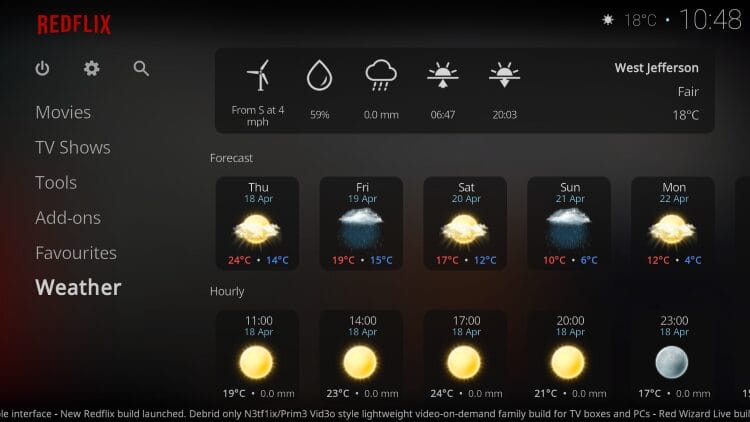
Weather:
There are also various categories within each tab for genres, years, etc.
RedFlix Build Review
Here’s what our testing revealed about this Kodi build:
What We Like
- Tiny 17MB footprint means fast installs and smoother playback
- Netflix-style interface feels familiar to anyone coming from mainstream streaming apps
- FEN Lite is one of the most reliable debrid-only scrapers in the Kodi community
- Active developer with Telegram group, Rumble channel, and donation page
- Same repository also hosts the fuller Red Wizard build and custom Kodi forks
What We Don’t Like
- Third-party source with no verified licensing for the content
- Only one pre-installed add-on means limited source variety if FEN Lite goes down
- Paid debrid account is required for any working streams
- Older Kodi versions (19 Matrix and below) may experience errors
- No live TV or sports categories, so users need a separate live TV ap
Is The RedFlix Build Legal?
It’s impossible for TROYPOINT to determine whether these unverified builds hold the proper licensing.
TROYPOINT recommends only accessing media not protected by copyright such as those that fall under Public Domain status.
The end-user is responsible for all content accessed through unverified builds/add-ons/apps/websites. For verified options, see our list of legal streaming apps.
Let us know what you think of the RedFlix build in the comments below!
The post How to Install RedFlix Build on Kodi (Firestick & Android TV) appeared first on TROYPOINT: Tech Tutorials On Firestick, Kodi, Android TV Box, VPN, IPTV, Streaming, & More.