


This tutorial shows how to install CinePlus APK on Firestick, Fire TV, Android TV/Google TV, and other devices.

CinePlus is a free streaming app that appears to be one of the newer clones of BeeTV, as the interface and categories are very similar.
This APK offers movies, TV shows, anime, and other on-demand content. The latest update is V1.0.3 which was released by its developers in July 2026.
While there were some free streaming links that worked, after testing we categorize this APK as another ‘crap app’ that will likely disappear or have issues in the near future.
Unlike our top-rated APKs, CinePlus has annoying ads, requires an external player for use, has poor link quality, and its debrid service integrations don’t work properly.
Since CinePlus is not available in official app stores, it must be side-loaded on Android-powered devices like the Amazon Firestick, Fire TV, and Android TV/Google TV devices.
How to Install CinePlus APK on Firestick & Android TV
In this guide, we are installing the CinePlus app on an Onn 4K Pro, but these instructions also work on Firestick/Fire TV as well as other Android TV/Google TV devices.
Note: This app does NOT work on the Fire TV Stick Select model. This device does not run on Android OS and instead uses “Vega OS” which is Amazon’s in house platform.
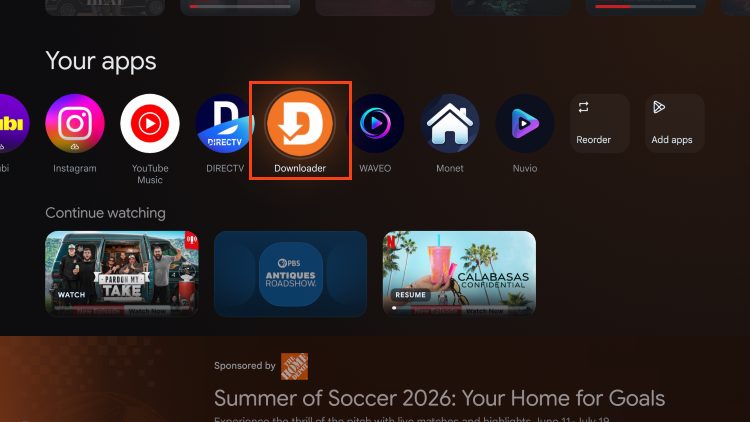
1. You must first install the Downloader app on your device. If you haven’t done this, refer to our Downloader Tutorial. Launch Downloader.
2. Click the search bar or Hashtag icon at the top of the screen.
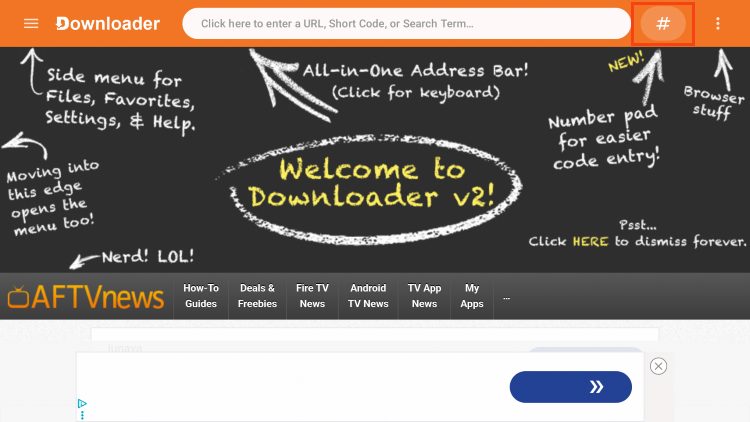
3. Type the following Code – 2098541 and click Next.
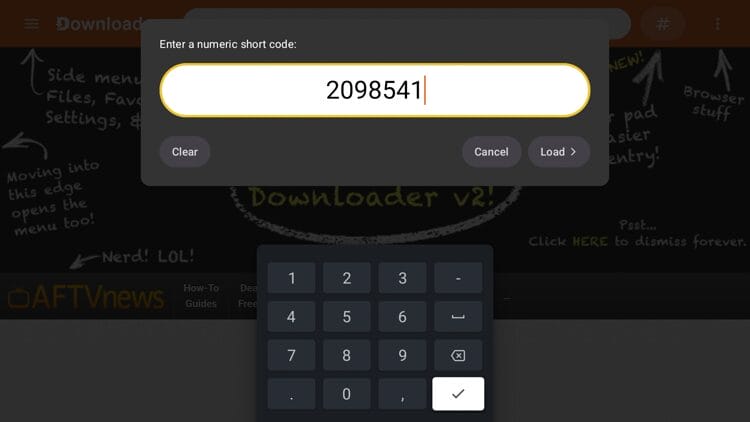
4. Wait a few seconds for the APK file to install.
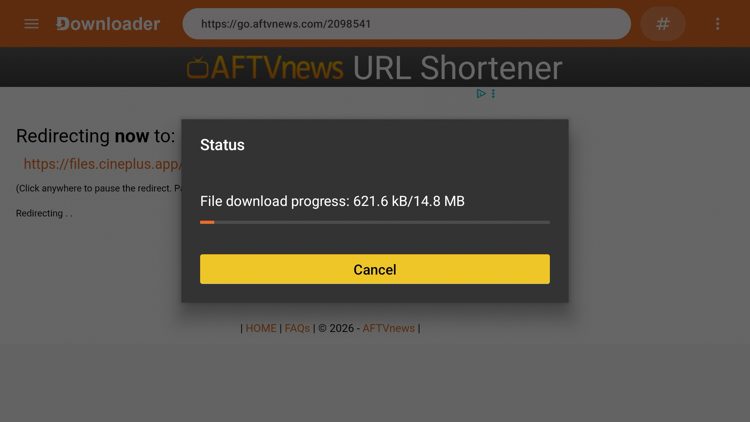
5. Click Install.
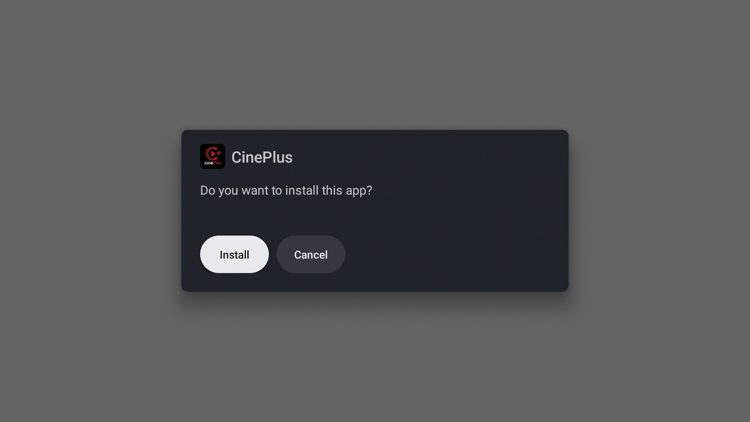
6. If you get this Play Protect message, click more details and Install anyway.
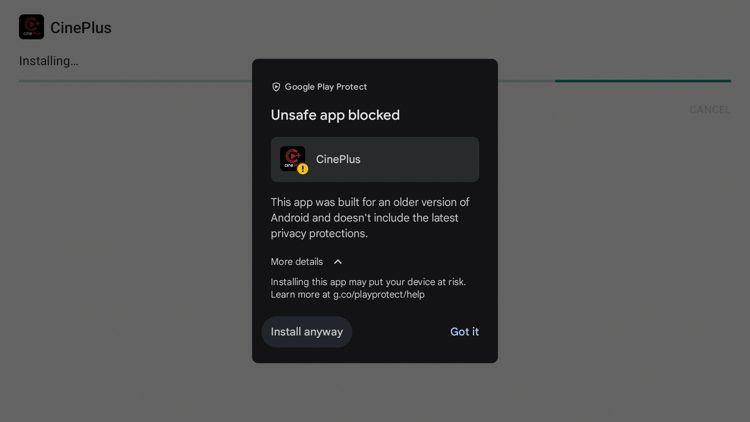
7. Click Done.
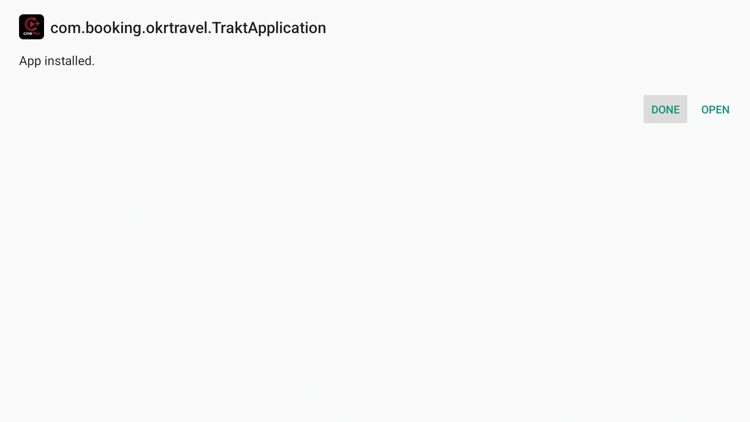
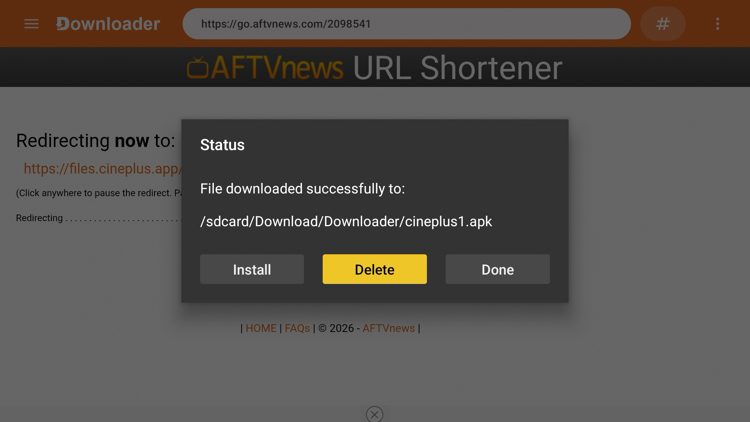
8. Return to Downloader and click Delete.
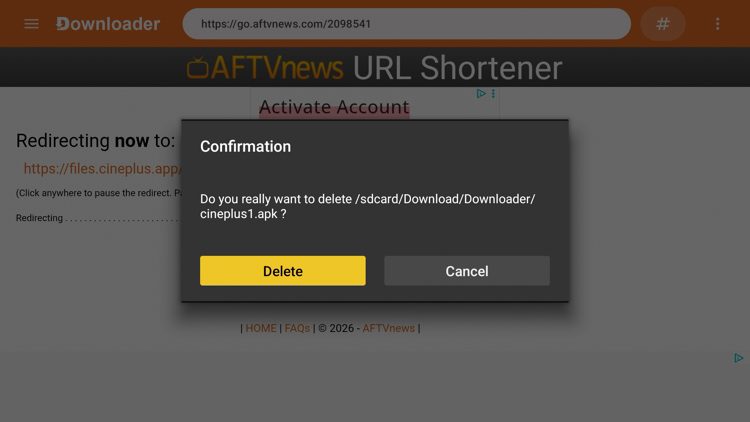
9. Click Delete again.
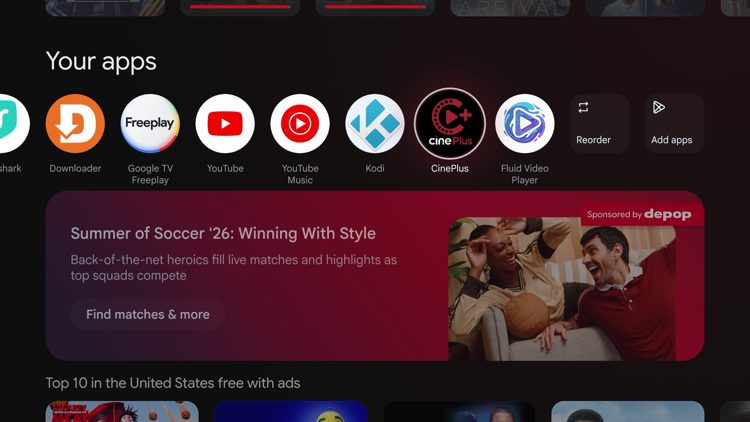
10. Now launch the CinePlus application.
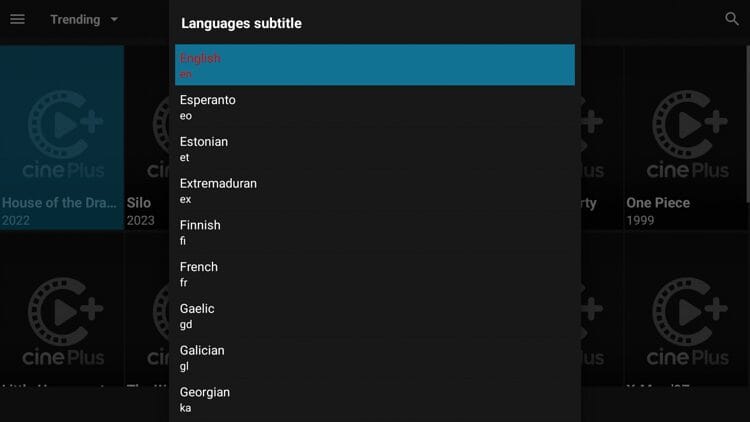
11. When the app launches you will be asked to choose your subtitle language.
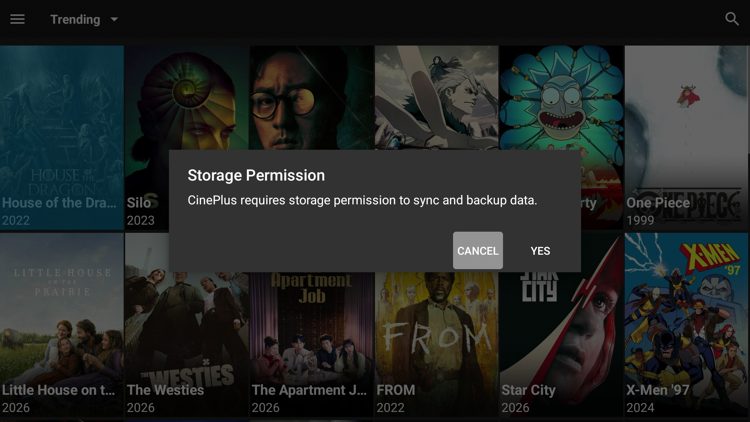
12. Then click Cancel when asked about storage permission.
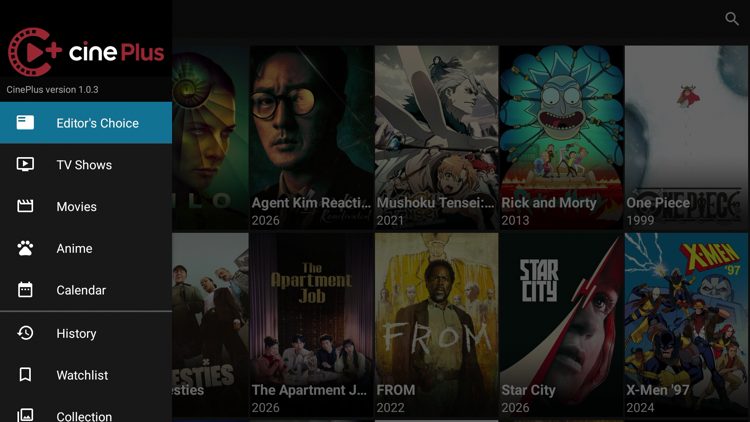
13. You have successfully installed CinePlus APK on your device.
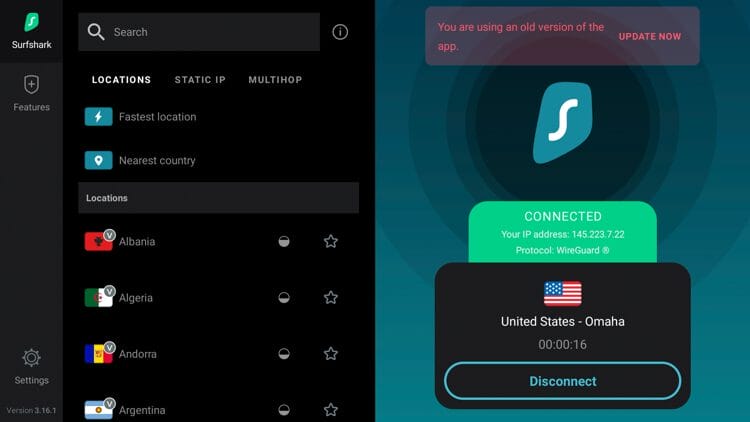
14. A critical step before using CinePlus APK is to protect yourself with a VPN since this is an unverified streaming app. See our VPN on Firestick tutorial for more details.
How to Add External Video Player
In order to stream content from CinePlus, you must install an external video player called Fluid Video Player. This is available within Google Play and we show how to install this below.
1. Choose any movie or TV show and click on a streaming link. Then click Play from this list of playback options.
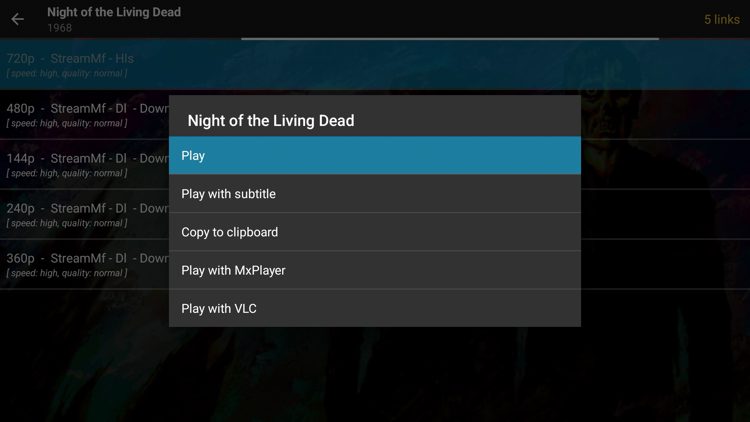
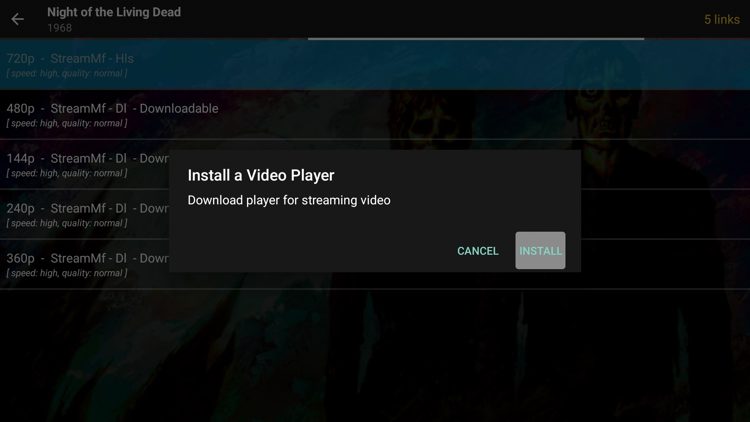
2. You will be prompted to install a video player. Click Install.
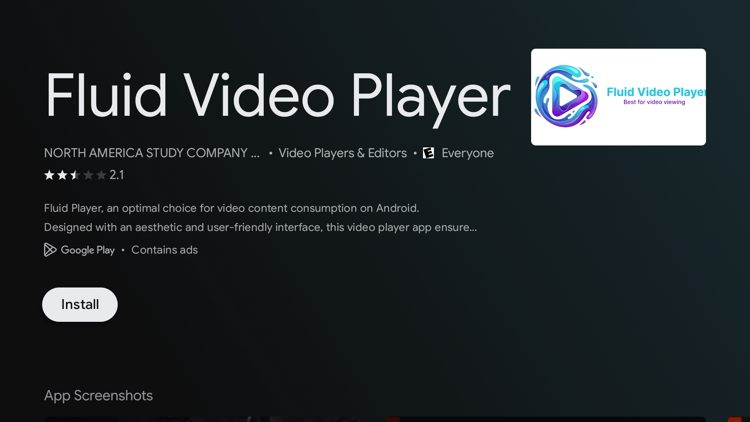
3. You will be redirected to Google Play to install the Fluid Video Player. Click Install.
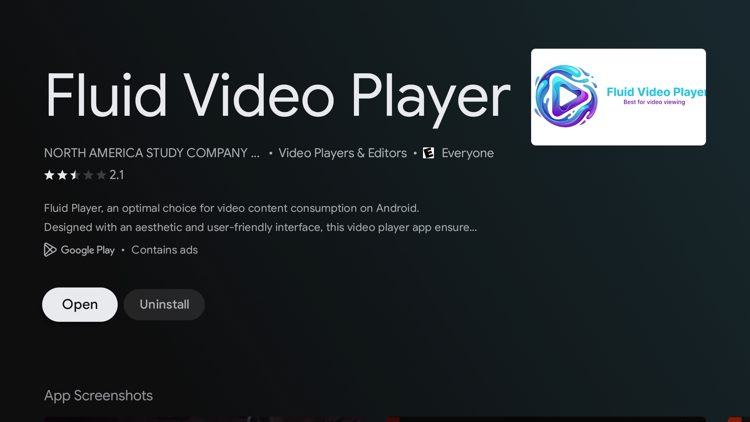
4. After the Fluid Video Player has installed click Open.
5. Click Allow.
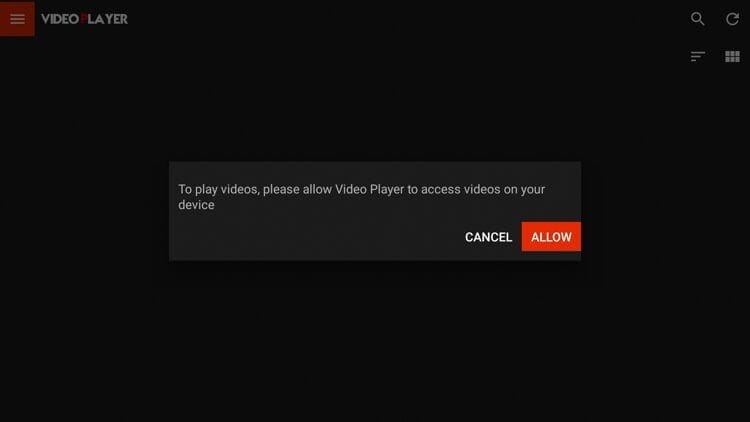
6. Then return back to CinePlus where you are now able to stream content.

How to Integrate Debrid Services
While debrid service integration doesn’t work well after testing, there is still an option to pair debrid services within CinePlus. This includes Real-Debrid, Premiumize, and AllDebrid.
1. Click Settings on the left menu.
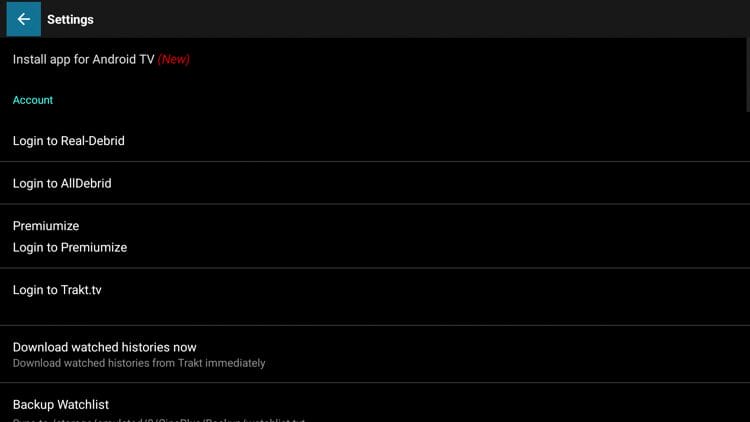
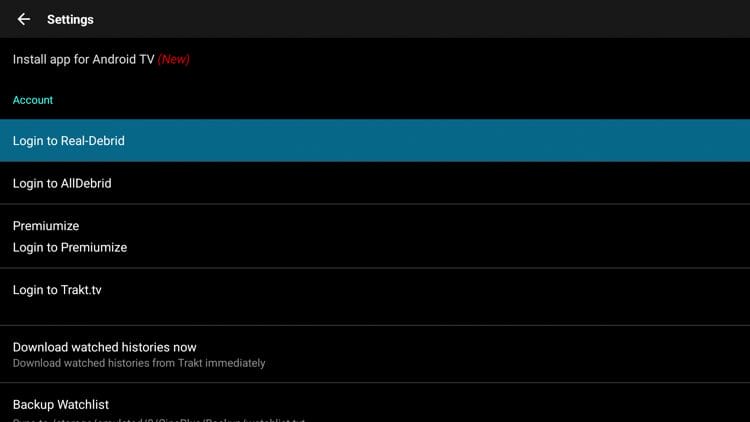
2. Then locate your preferred debrid service. We are pairing Real-Debrid in this example so click Login to Real-Debrid.
3. You will be presented with an activation code. Write this down for the next step.
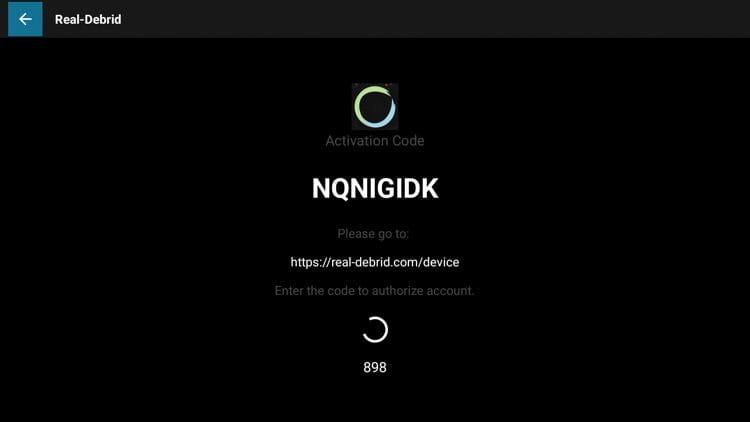
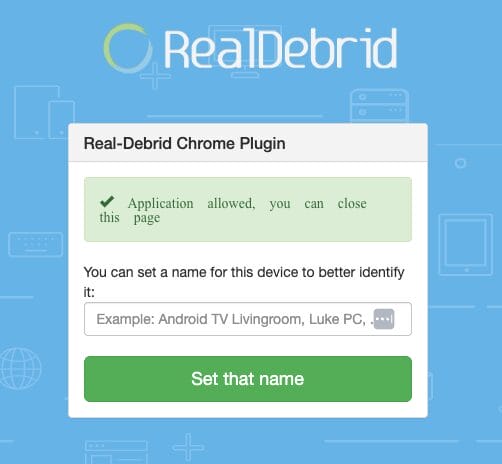
4. Visit real-debrid.com/device and enter in the code from the previous step.
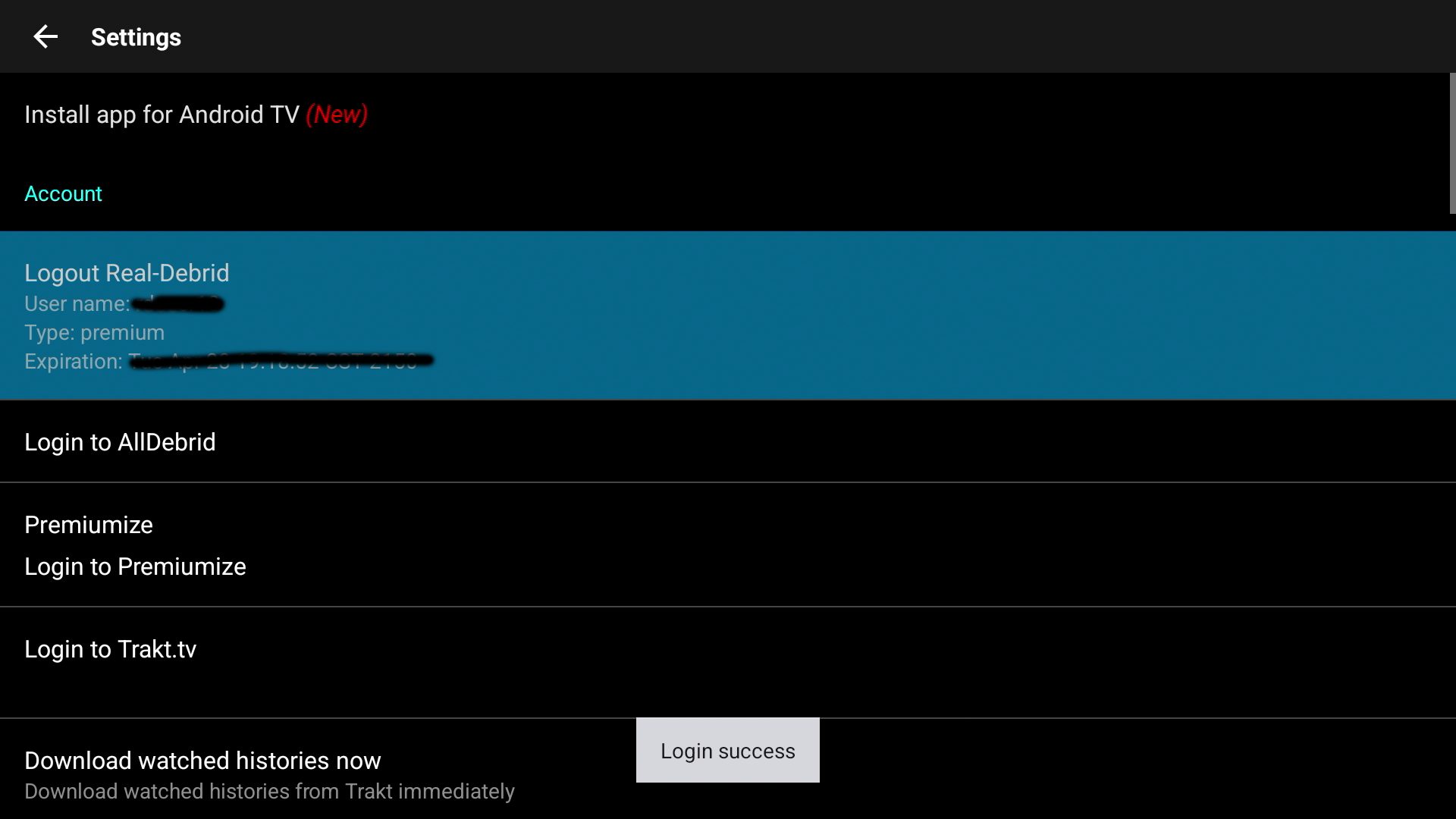
5. You should then receive a ‘Login success’ message with your account credentials showing.
CinePlus APK Details & Categories
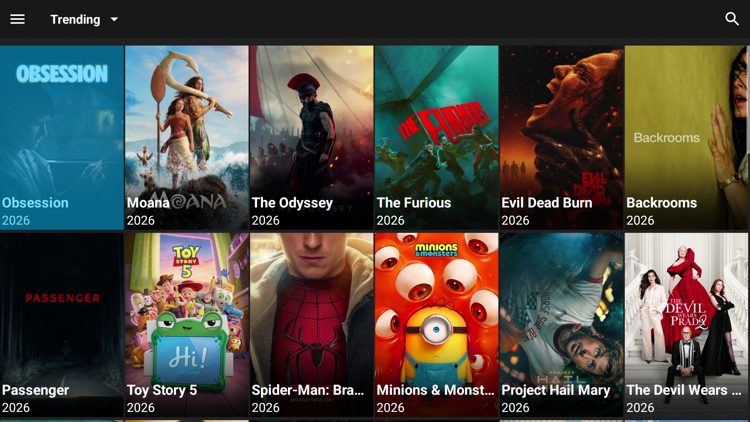
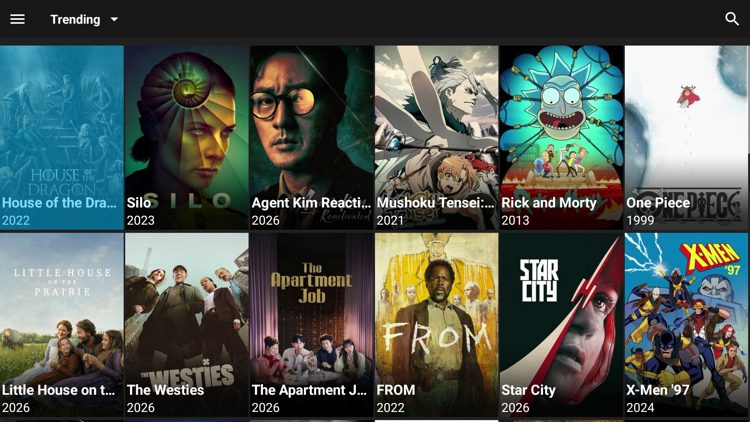
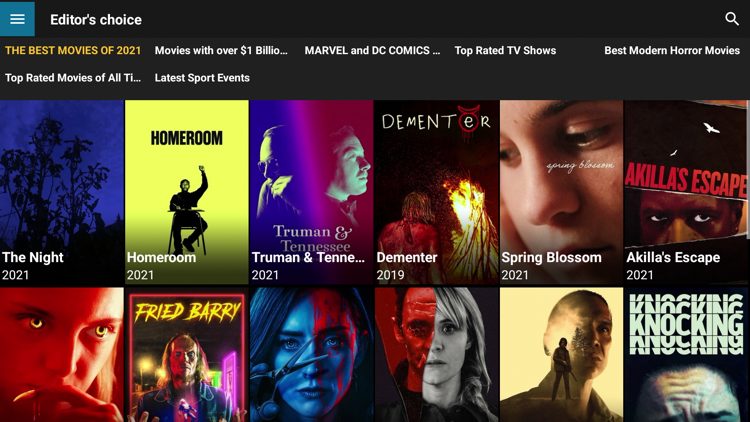
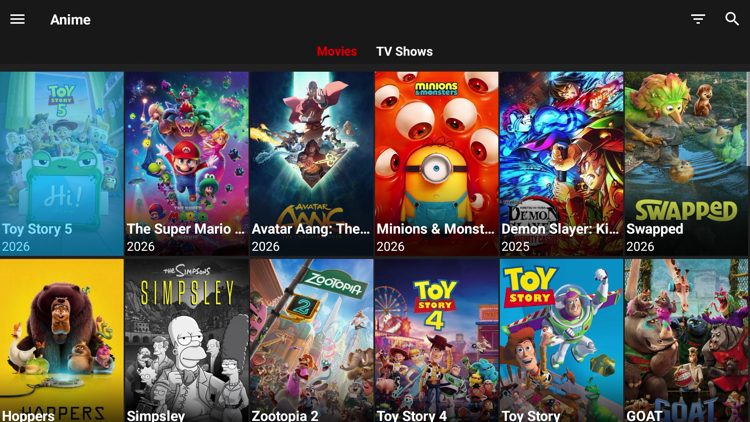
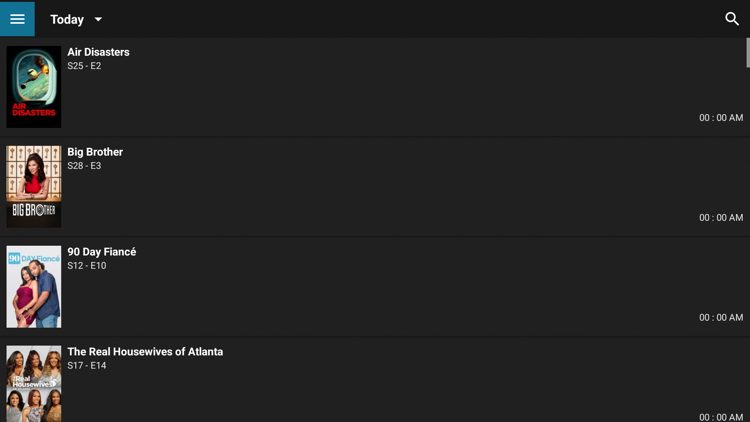
CinePlus presents a user-friendly interface with several categories. This includes Movies, TV Shows, Editor’s Choice, Anime, Calendar, History, Watchlist, Collection, and Settings.
Movies
TV Shows
Editor’s Choice
Anime
Calendar
Settings
Within the Settings tab you can customize different settings for subtitles, link sources, video players, watchlists, and more.
CinePlus APK Review
After testing this application, here is what I concluded about CinePlus:
What We Like
- Clean VirusTotal scan with no malicious files detected
- Clone of the BeeTV app for users who liked the original interface
- Small install footprint keeps the app quick to load on older streaming sticks
- Multiple category options including Editor’s Choice, Anime, and Watchlist
- No account signup required to start browsing content right away
- History and Watchlist features let users pick up viewing where they left off
What We Don’t Like
- Third-party source with no verified licensing for the content
- Ads interrupt browsing often despite the official site’s “ad-free” marketing claim
- Requires the specific Fluid Player download, adding install friction most apps skip
- Free streaming link quality is poor
- Broken integration for all debrid services during testing
- Falls into the “crap app” category of throwaway BeeTV clones that come and go quickly
Is CinePlus APK Legal?
It’s impossible for TROYPOINT to determine whether these unverified apps like ‘CinePlus’ hold the proper licensing.
TROYPOINT recommends only accessing media not protected by copyright such as those that fall under Public Domain status.
The end-user is responsible for all content accessed through unverified apps. For verified options, see our list of legal streaming apps.
Is This App Safe to Install?
It is extremely important to check these “unofficial” applications for malware/viruses before using them and the best way to do this is with VirusTotal. Below is a screenshot of scan results from the official APK file.
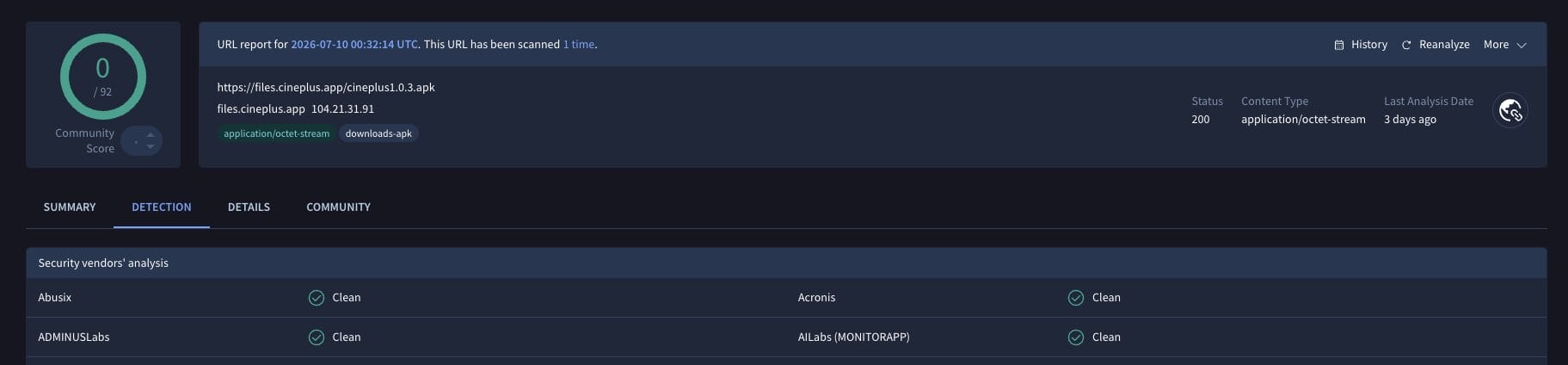
While VirusTotal did not flag any malicious files within the CinePlus APK, we should still protect ourselves with a VPN when streaming content from unverified streaming platforms like this one. Proceed with caution and understand the security risks if you decide to use this third-party app.
Final Thoughts from Troy
CinePlus is a pass for most viewers who care about link quality, ad-free playback, or reliable debrid service integration. If you’re chasing simple free links and don’t mind side-loading a companion video player, CinePlus can work in a pinch.
If you want a real streaming setup that respects your time and paid services, stick with Stremio or Nuvio where debrid integration actually works and the app doesn’t require a separate player install.
Have you tried installing CinePlus? Let us know what you think in the comment section!
The post How to Install CinePlus APK on Firestick & Android TV (V1.0.3) appeared first on TROYPOINT: Tech Tutorials On Firestick, Kodi, Android TV Box, VPN, IPTV, Streaming, & More.